
Manage documents and videos
Upload, organize and share your city's files and videos, and help Peny's AI answer residents from them.
What the Content library is for
Content is where your city's files live: documents, folders, videos and maps. Residents don't browse the library itself. They see the documents and videos you link from your website, posts and Peny's answers.
When you upload a PDF, Peny's AI reads it so it can answer residents' questions from it. Keeping your documents current is one of the best ways to improve Ask Peny's answers.
Before you start
- Who can do this: Staff who can create content (Admins, Super Admins and staff members, unless an admin has changed their permissions) can upload, edit, move and delete. Staff with the Standard Admin (View Only) role can browse but not change anything.
- Where to find it: In the left sidebar, click Content.
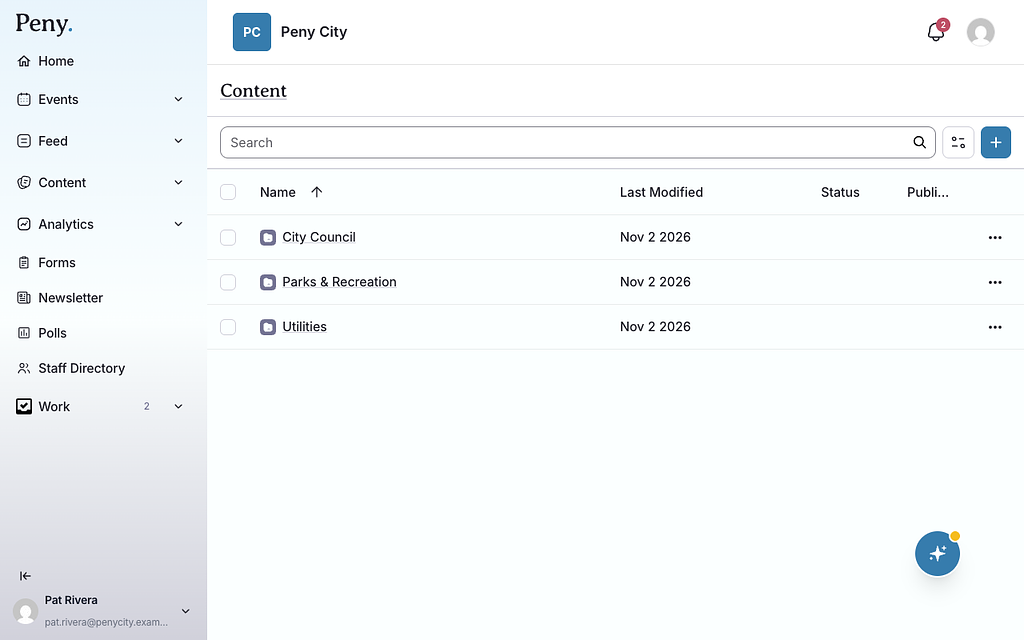
Find a file
- Search: Type in the Search box and press Enter. Search looks at names in every folder, not just the one you're in. It doesn't search the text inside files.
- Filter: Click the filter button to narrow by Type (such as Document, Folder, Video or Map), Added by, Edited by, Status, Published, Date added or Last modified. Click Clear all to reset.
- Sort: Click a column heading, such as Name or Last Modified.
Upload documents
- In Content, open the folder you want the files in.
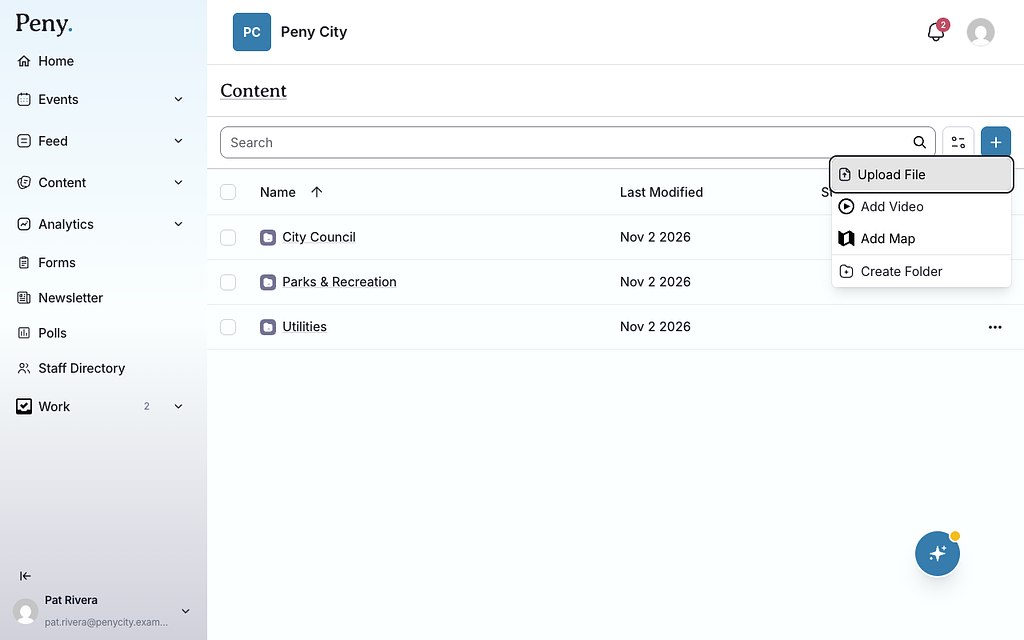
- Click the + button (Add content).
- Click Upload File.
- Choose one or more files. Each file can be up to 50 MB.
- Watch the progress panel in the bottom-right corner. It shows Uploading... and Processing... for each file, then Added when they're done.
Uploaded documents are published right away. There's no draft step, so check that a file is ready to be public before you upload it.
Peny adds the date and time to each uploaded file's name. To give a document a friendlier name or add a description, see Rename or describe a document below.
How Peny's AI uses your documents
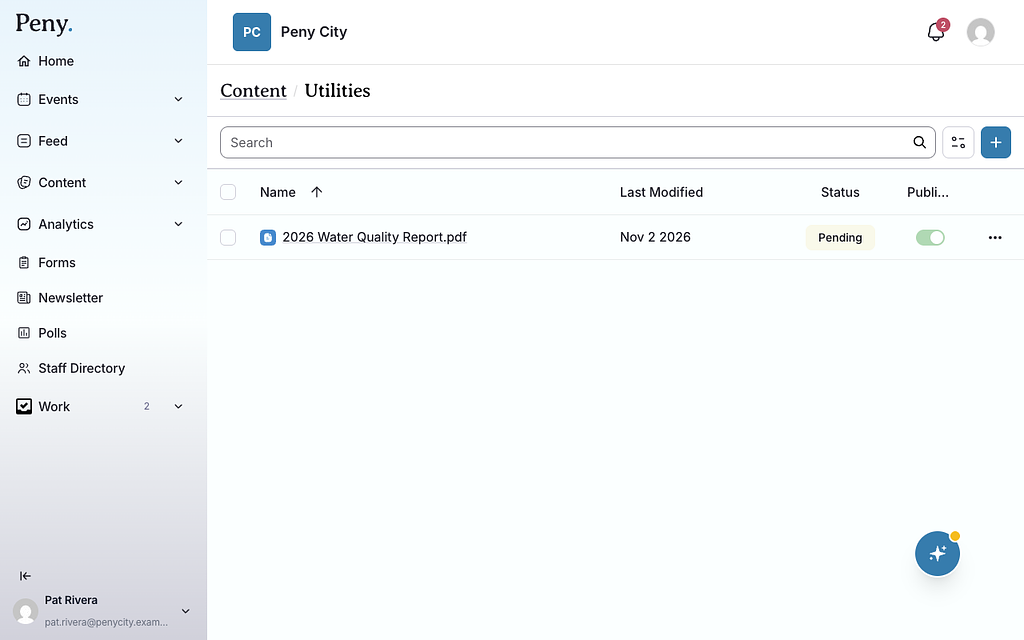
Peny's AI reads PDF files. Each PDF's Status column shows where it is:
| Status | What it means |
|---|---|
| Pending | Waiting to be processed. |
| Processing | Peny is reading the document. |
| Retained | Done. Peny can now answer questions from it. |
| Error | Something went wrong. Try uploading the file again. |
If the status doesn't change, refresh the page.
Word files, spreadsheets and images can still be shared and linked, but Peny's AI doesn't read them. If you want Peny to answer from that information, upload it as a PDF.
Rename or describe a document
- Click the ⋯ menu on the document's row.
- Click Edit.
- Change the Name and add a Description.
- Click Save.
Replace an outdated document
You can't swap the file inside an existing document. Instead:
- Upload the new file.
- Update any website pages or posts that link to the old one.
- Archive or delete the old document.
Archive keeps an old document public but tells Peny's AI it's an earlier version, so Peny answers from the newer one. Open the old document's ⋯ menu and click Archive. It gets an Archived badge. To undo, click Unarchive.
Preview and share a document
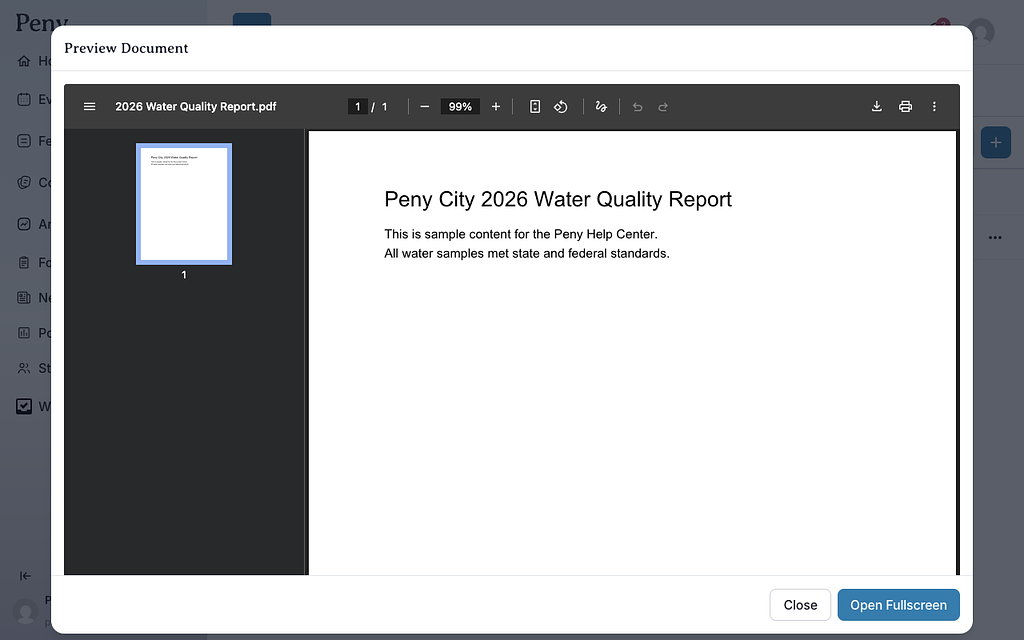
- Click a document's name to open Preview Document.
- Click Open Fullscreen for a larger view.
- In fullscreen, the share icon (Share document) opens your phone's share options, or downloads the file on a computer.
To copy a public link:
- Click the ⋯ menu on the document's row.
- Click Share.
- Click Copy to clipboard.
To list documents on a website page, use the Document Links block.
Organize files in folders
Create a folder
- Open the folder you want the new folder inside, or stay at the top level.
- Click + (Add content), then Create Folder.
- Type a Name.
- Click Create.
To rename a folder, click its ⋯ menu, click Edit, change the Name, and click Save.
Move files and folders
- Click Move in an item's ⋯ menu. To move several items, tick their checkboxes and click Move at the top.
- Choose the folder to move them to. Click New folder if you need one.
- Click Move.
You can also drag items onto a folder. Moving a folder moves everything inside it.
Delete and restore
- Click Delete in an item's ⋯ menu. To delete several items, tick them and click Delete Selected.
- Confirm. Deleting a folder also deletes everything in it.
Deleted items go to Content › Trash, where they're listed for 30 days. To get something back, open Trash, click the item's ⋯ menu, and click Restore. Permanently Delete removes it for good and can't be undone.
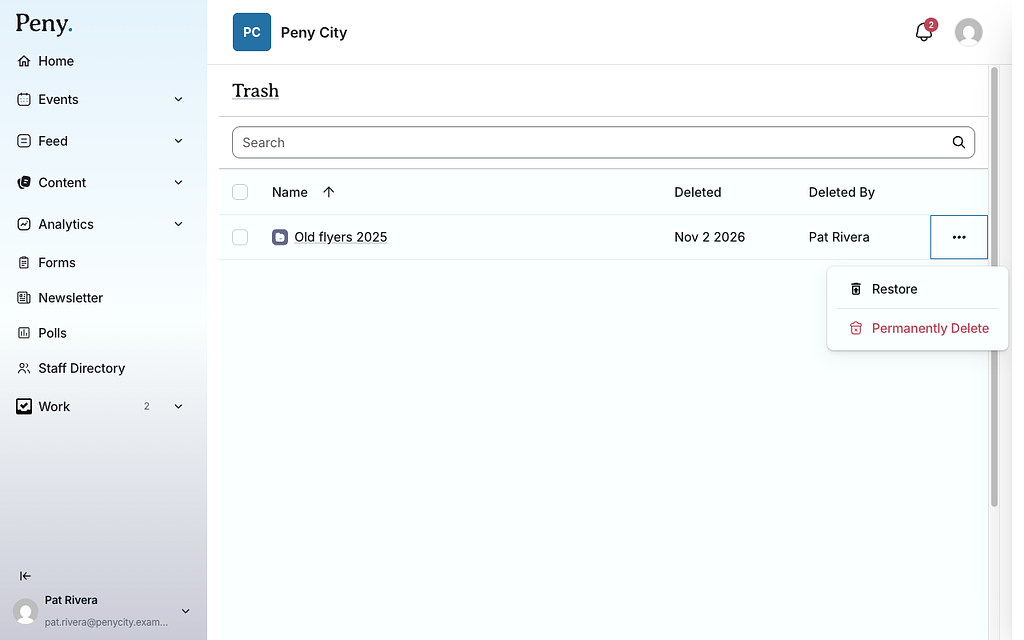
Before you delete a document, check whether your website pages or posts link to it, and update those links.
Add a video
Videos in the Content library are YouTube videos. Add council meetings and other recordings that are already on your city's YouTube channel.
- In Content, open the folder you want the video in.
- Click + (Add content), then Add Video.
- Paste the video's YouTube URL. For a working YouTube link, a preview appears and the Title fills in.
- Check the Title (it's required), and add a Description (optional).
- Click Save.
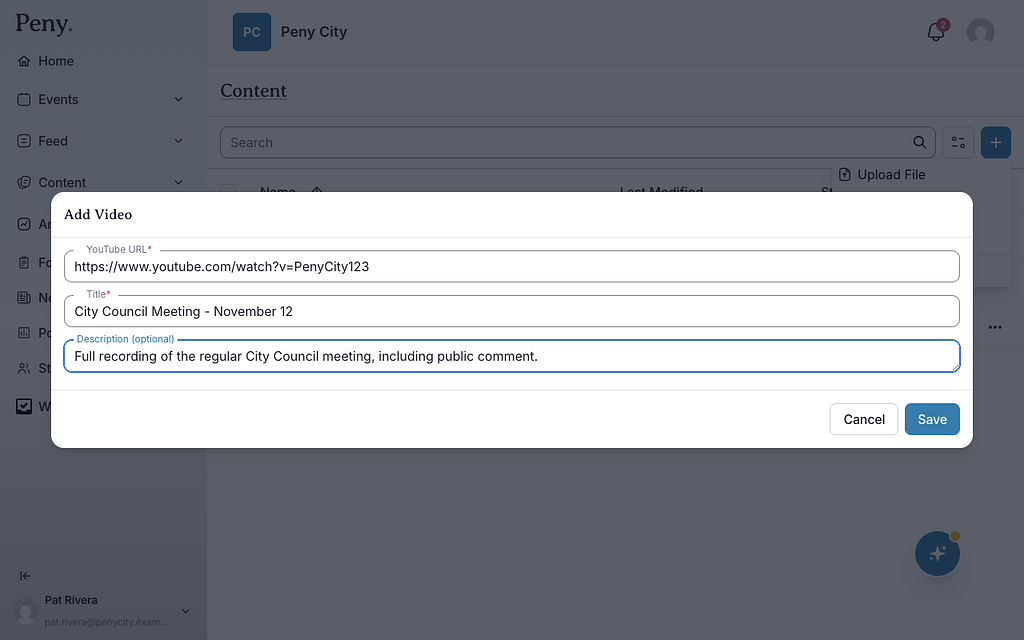
Peny then gets the video's transcript. The video's page shows its progress: Queued for processing..., Fetching video info..., Extracting transcript... and finally Ready. Once the transcript is ready, Peny's AI can answer questions about what was said, and residents can read the Transcript next to the player.
Things to know:
- Only YouTube links work right now.
- You can't add the same YouTube video twice.
- If a video's owner has turned off embedding on YouTube, residents see a Watch on YouTube button instead of the player.
Add captions to a video in a post
Videos you upload to a post can have captions, which help residents who are deaf or hard of hearing and anyone watching without sound.
- In the post composer, add your video.
- Click Edit captions on the video.
- Click Generate captions. This usually takes a few minutes.
- Reopen Captions when the video no longer says Generating captions….
- Play the video and read the captions. Fix names, places and terms.
- Tick I've read these captions against the video and fixed what was wrong.
- Click Save captions.
Automatic captions don't count as reviewed until a person has checked them. Until then, the video shows Captions need review.
Don't see this? It may not be turned on for your city yet — email support@penyapp.com.