
Getting started with Peny
Sign in, find your way around the staff tools and learn where to get help.
What you can do in Peny
Peny is where your city shares information with residents and where residents ask questions about your city. As a member of your city's staff, you can:
- Share news and urgent alerts in your city's feed.
- Add events to your city's calendar.
- Ask residents questions with polls.
- Collect requests and sign-ups with forms.
- Keep documents, videos and maps in one library.
- Build and update your city website.
Residents read your updates in the Peny app and on your city's Peny site, and they get notified about the topics they follow.
Sign in
Peny doesn't use passwords. You sign in with a one-time code that Peny emails to you.
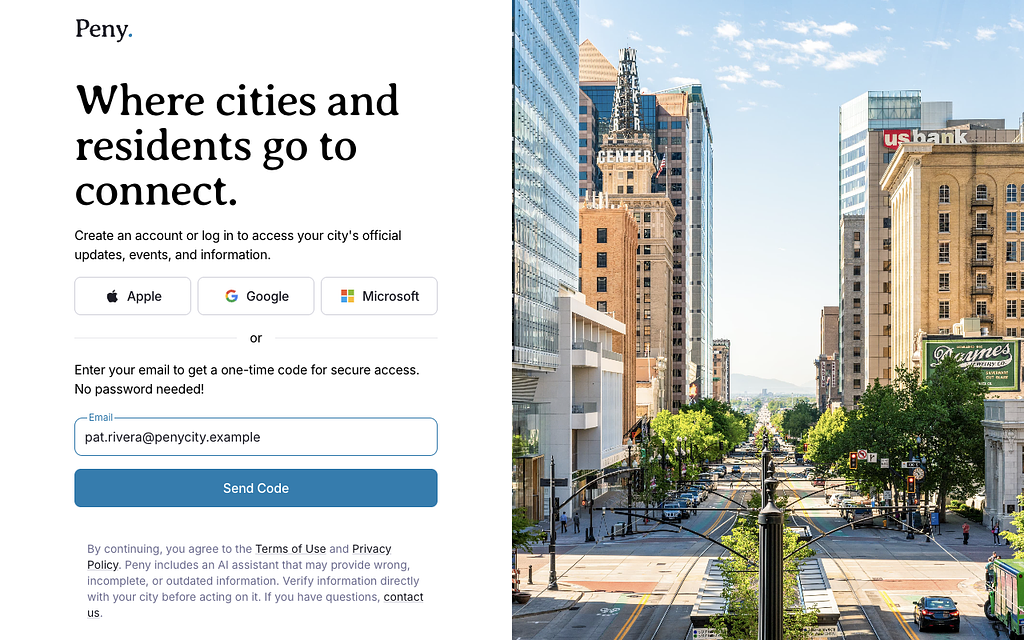
- Go to the Peny sign-in page at peny.app/login.
- In Email, type the email address your city added you with.
- Click Send Code.
- Open the email from Peny. It has a 6-digit verification code.
- Type the code on the Account Verification page. There's no button to press: the code is checked automatically once all six digits are entered.
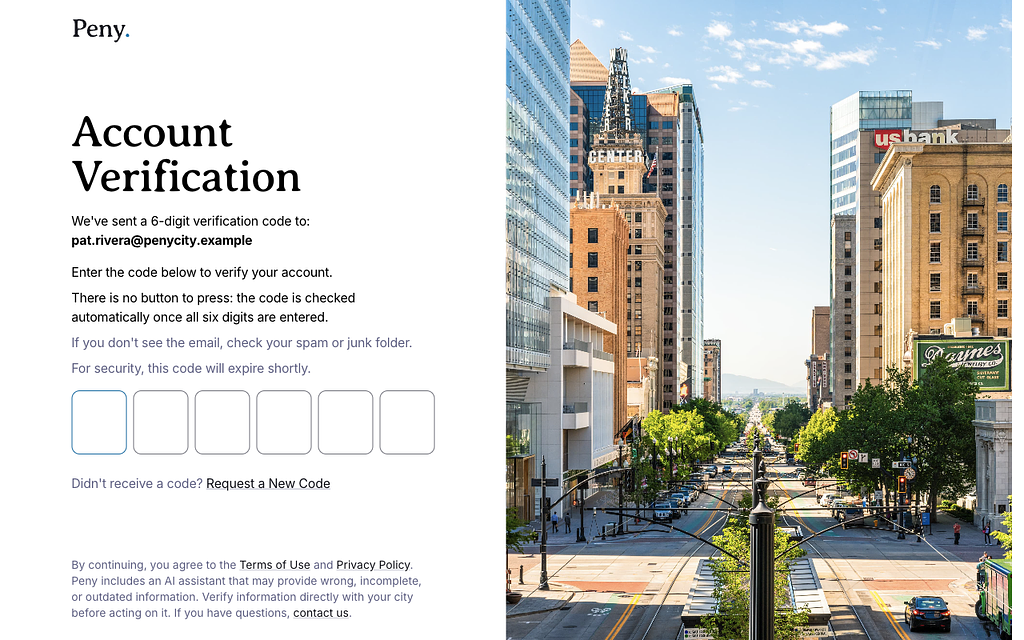
Didn't get a code? Check your spam or junk folder. Codes expire shortly, so if yours has expired, click Request a New Code under "Didn't receive a code?".
Other ways to sign in. The sign-in page also has Apple, Google and Microsoft buttons. Peny finds your account by email address, so use one of these only if it signs you in with the same email address your city added you with.
Find your way around
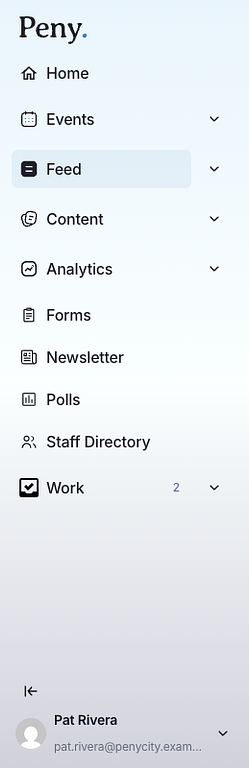
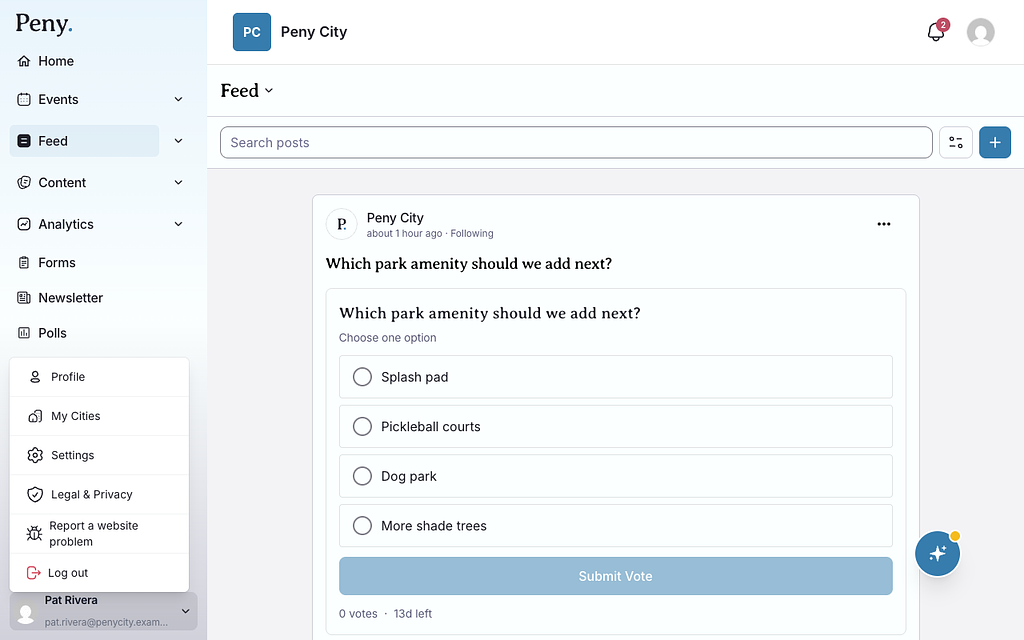
Once you're signed in, the staff sidebar runs down the left side of the screen. Click an item to open it. Items with an arrow open to show more pages underneath.
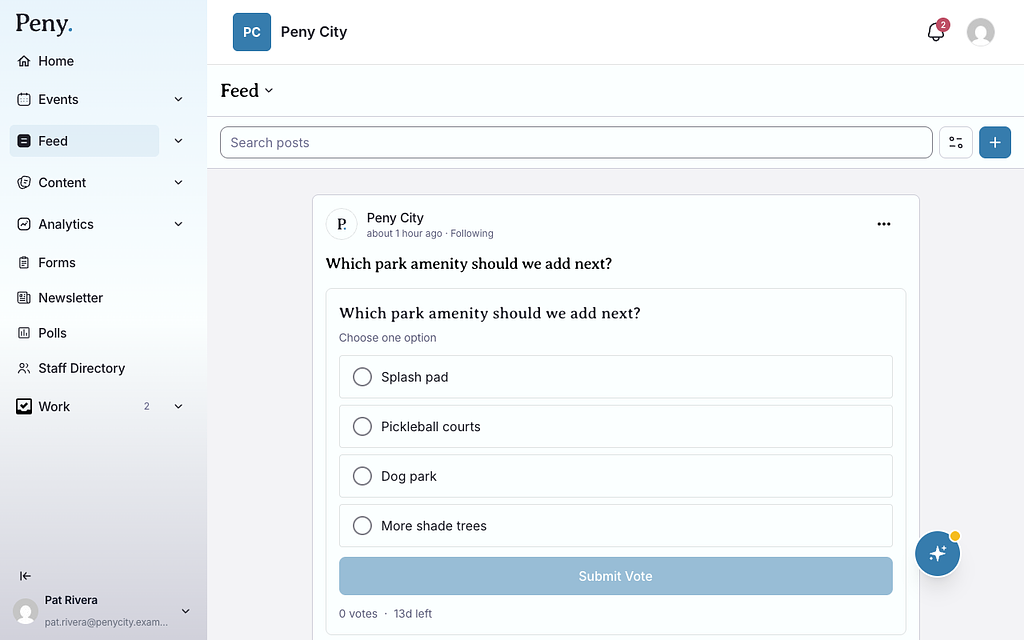
Here's what's in the sidebar. Some items only appear for certain roles, or only when a feature is turned on for your city.
- Home — your starting page.
- Events — your city's events. Underneath: My events (events you've created and published) and Drafts (events you haven't published yet).
- Feed — your city's posts, the way residents see them. Underneath: Drafts, the posts you're still working on.
- Content — your library of documents, videos and maps. Underneath: City Pages (your city website, for city admins) and Trash (deleted items).
- Analytics — Dashboards show how residents use Peny.
- Forms — forms residents fill in, and their responses.
- Newsletter — your city's newsletter email.
- Polls — your polls and their results.
- Staff Directory — your city's public staff directory.
- Work — Inbox lists approvals and other tasks waiting on you. The number beside Work is how many. Staff who manage workflows also see Workflows.
- Questions Inbox — in cities without a Work section, admins open the Questions Inbox here. See Ask Peny and the Questions Inbox.
Along the top you'll see your city's name, a bell with your notifications and your profile picture.
Need more room? Click the arrow button above your name (Collapse) to shrink the sidebar to icons. Click it again (Expand) to bring the labels back.
Your profile menu
Click your name at the bottom of the sidebar to open your profile menu:
- Profile — your own profile.
- My Cities — the cities you follow and your notification settings for each.
- Settings — your city's account settings.
- Legal & Privacy — legal and privacy information.
- Report a website problem — the email address to write to when something on the site is broken.
- Log out — sign out of Peny on this device.
Use Peny on your phone
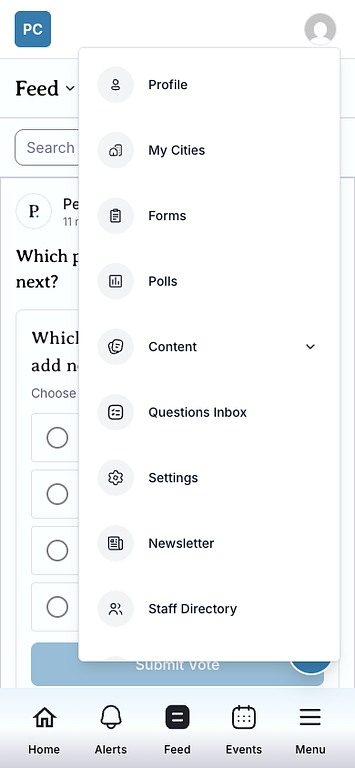
On a phone, the sidebar is replaced by a bar along the bottom of the screen with Home, Alerts, Feed, Events and Menu. Tap your profile picture in the top-right corner to reach the other staff tools, such as Forms, Polls, Content and Settings.
Get help
- Ask AI. Click the round sparkle button in the bottom-right corner of the screen (Ask AI) and type your question in plain language. See Ask Peny and the Questions Inbox.
- Email the Peny team at support@penyapp.com.
- Something broken? Open your profile menu and click Report a website problem.