
Staff Section block
Show a whole department or division as a grid of contact cards.
What it's for
A Staff Section shows everyone in a department or division — like the City Council or the Parks crew — as a grid of compact contact cards. It fills itself from the staff directory, so new people appear and people who leave drop off without editing the page.
Add it to a page
Who can do this: City admins, in the website builder.
You need the staff directory, with people in it. These blocks show what's in the directory, so update people there, not on the page.
Don't see this? It may not be turned on for your city yet — email support@penyapp.com.
- In the left sidebar, open Content › City Pages.
- Find the page and click Edit. The page opens in the builder.
- In the Add blocks panel on the left, find Staff Section under Dynamic. You can also type "Staff Section" in Search blocks.
- Drag Staff Section onto the page where you want it. Or select the block it should follow and click Staff Section to add it right below — with nothing selected, it goes at the end of the page.
- The new block is selected and its settings appear in the Settings panel on the right.
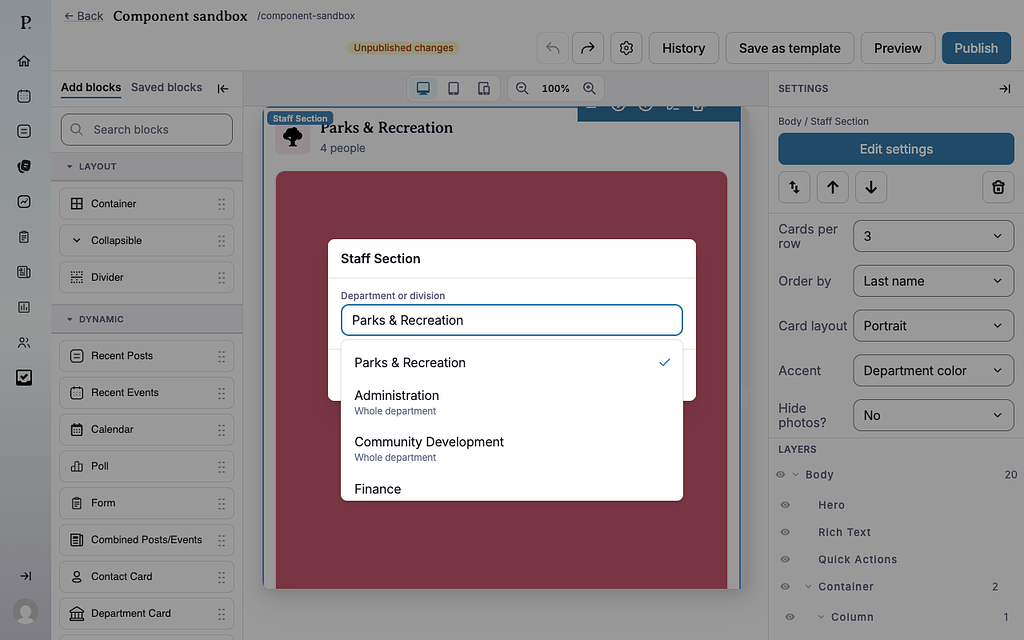
- Click Edit settings in the Settings panel (or double-click the block).
- Under Department or division, click Choose a department or division… and pick one.
- Click Save.
- Pick the grid's options in the Settings panel.
- Your changes save as a draft as you go. Residents see them after you click Publish — or Ready for review, if your city reviews page changes.
Settings
In the side panel
- Cards per row — 3 (default) or 2, on computers. Tablets show two per row and phones one.
- Order by — Last name (default), First name or Custom order.
- Card layout — Portrait (default for new blocks): a large photo above the details. Stacked: photo on top, centered. Row: a smaller photo beside the name. Banner: the photo and name on a colored header.
- Accent — Department color (default) uses the color set for the department in the staff directory; City brand uses your city's brand color.
- Hide photos? — No (default) or Yes.
In the Edit popup
- Department or division — Who to show. Departments are marked "Whole department"; divisions show the department they belong to.
- Custom order — Appears only when Order by is Custom order. Drag people into the order you want. The order applies to this page only, and anyone added to the department later appears at the end.
Set a custom order
- In the Settings panel, set Order by to Custom order.
- Click Edit settings.
- Under Custom order, drag people by their handles into the order you want.
- Click Save.
What residents see
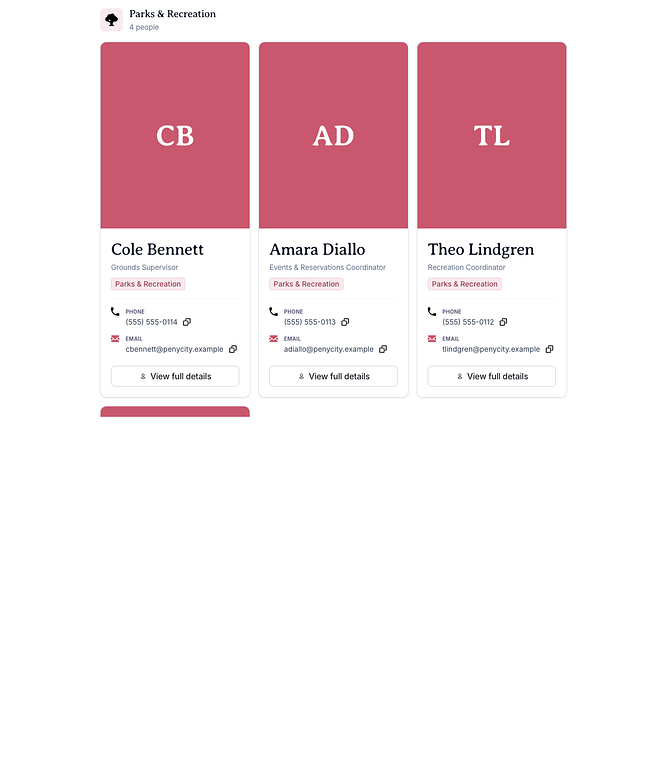
A heading with the department's name and how many people are shown (and the division's name, for a division), then a grid of cards. Each card shows the person's photo, name and title, phone and email, and a View full details button that opens their full directory details.
Only active people are shown. If the department or division has no active people, the block shows nothing on the page.
Tips
- Use Custom order to put leaders first, such as the mayor before council members.
- Use a division to show a smaller team instead of a whole department.
- Keep it to one Staff Section per department on a page; use Contact Card for one person.
- Check phones: click the Mobile preview button above the canvas.