
Map block
Put one of your city's maps on a page, live and ready to explore.
What it's for
The Map block puts one of your city's maps — snow routes, park locations, construction zones — on a page. Residents can pan and zoom it, but can't change it.
Add it to a page
Who can do this: City admins, in the website builder.
You need a map that residents can see (a public map), or you can make one as you go.
Don't see this? It may not be turned on for your city yet — email support@penyapp.com.
- In the left sidebar, open Content › City Pages.
- Find the page and click Edit. The page opens in the builder.
- In the Add blocks panel on the left, find Map under Dynamic. You can also type "Map" in Search blocks.
- Drag Map onto the page where you want it. Or select the block it should follow and click Map to add it right below — with nothing selected, it goes at the end of the page.
- The new block is selected and its settings appear in the Settings panel on the right.
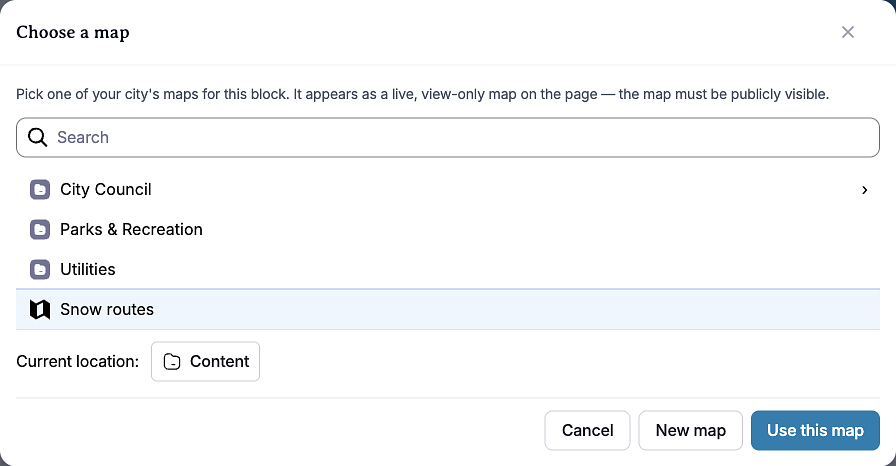
- Click Edit settings in the Settings panel (or double-click the block). The Choose a map window opens.
- Open folders or use Search to find your map, click it, then click Use this map.
- In the Settings panel, choose a View and a Height.
- Your changes save as a draft as you go. Residents see them after you click Publish — or Ready for review, if your city reviews page changes.
To make a new map instead, click New map in the Choose a map window. The map editor opens; when you go back to the builder, the new map is already in the block.
Settings
In the side panel
- View — Map default view, or one of the map's saved views. A saved view opens the map at its own position, zoom and layers. Choosing a different map resets this to Map default view.
- Height — Small (300 pixels), Medium (450 pixels, default) or Large (600 pixels).
In the Edit popup (Choose a map)
- The map — Pick any of your city's maps, then click Use this map. Click Edit settings again to switch to another map.
- New map — Creates a map and attaches it to this block.
What residents see
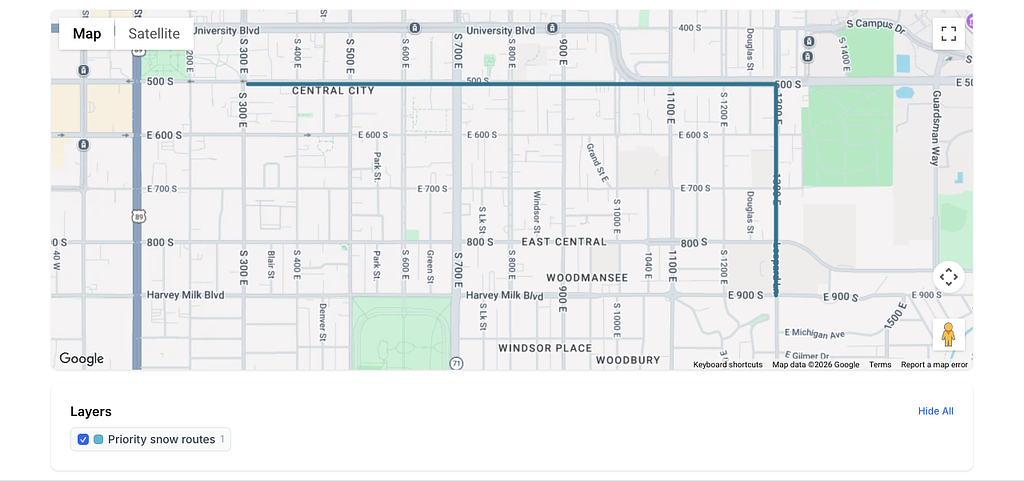
A live, view-only map at the height you picked, opened at the view you chose. Residents can drag to pan and zoom in and out.
Only public maps show. If the map isn't published and publicly visible yet, the builder shows a note — "“Snow routes” isn't published yet" — and residents see nothing in that spot until the map is made public in the map editor.
Tips
- Add a short Rich Text block above the map explaining what it shows. Screen reader users get the information from the text, not the map.
- Use a saved view to open the map zoomed in on the area that matters.
- Pick the height that fits the map — Large for a whole-city map, Small or Medium for one area or route.
- Check phones: click the Mobile preview button above the canvas.