
Static Event(s) block
Feature the events you choose, in the order you choose.
What it's for
Static Event(s) shows events you pick by hand, in the order you pick them — a festival on its own page, or the season's three big events. Unlike Recent Events, the list doesn't change on its own, and events you picked stay on the page after they happen.
Add it to a page
Who can do this: City admins, in the website builder.
- In the left sidebar, open Content › City Pages.
- Find the page and click Edit. The page opens in the builder.
- In the Add blocks panel on the left, find Static Event(s) under Content. You can also type "Static Event(s)" in Search blocks.
- Drag Static Event(s) onto the page where you want it. Or select the block it should follow and click Static Event(s) to add it right below — with nothing selected, it goes at the end of the page.
- The new block is selected and its settings appear in the Settings panel on the right.
- Click Edit settings in the Settings panel (or double-click the block). The block shows "Pick events" until you do.
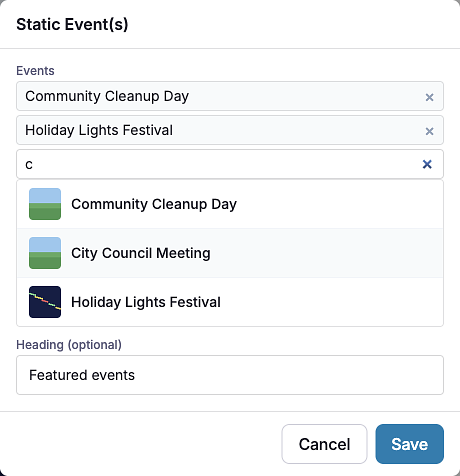
- Click in the Events search box. Recent events appear under Recent — or type to search.
- Click an event to add it. Add more events the same way; they show in the order you add them.
- Optionally type a Heading (optional), then click Save.
- In the Settings panel, choose a Style: Card or Promoted.
- Your changes save as a draft as you go. Residents see them after you click Publish — or Ready for review, if your city reviews page changes.
Settings
In the side panel
- Style — Card (default): compact cards. Promoted: large featured cards, like promoted events on the Events page.
- Heading alignment — Left (default), Center or Right.
In the Edit popup
- Events — Search and pick events. Only published events are listed. Picked events appear above the search box, in the order they'll show on the page; click the × next to one to remove it. To change the order, remove events and add them again in the order you want. The block shows up to 20 events.
- Heading (optional) — A heading above the events, such as "Save the date".
What residents see
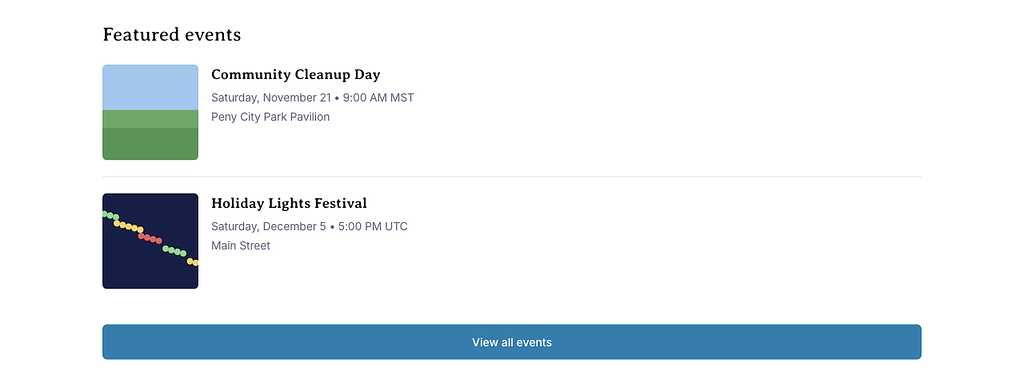
- Card style: each event as a card with its cover photo, name, date and time, and location, plus a View all events button that opens your city's events list. Clicking an event opens its page.
- Promoted style: each event as a large featured card.
Events you picked keep showing after their date has passed. If a picked event is later unpublished or deleted, it's skipped; if none can be shown, the block shows nothing.
Tips
- Remove past events when they're over, unless you want the page to keep a record of them.
- Want upcoming events automatically? Use the Recent Events block or the Calendar block instead.
- Use Promoted for one or two events that deserve attention; use Card for longer lists.
- Check phones: click the Mobile preview button above the canvas.
Frequently asked questions