
Build your city website
Create pages, arrange blocks and publish your city's public website.
What the website builder does
Your city's public website is a set of pages. You build each page by stacking blocks: text, photos, tables, news feeds, event calendars and more. Your edits save as a draft while you work. Residents only see a change after you publish it.
Before you start
- Who can use it: city admins. If you don't see City Pages in the sidebar, ask a city admin to check your role.
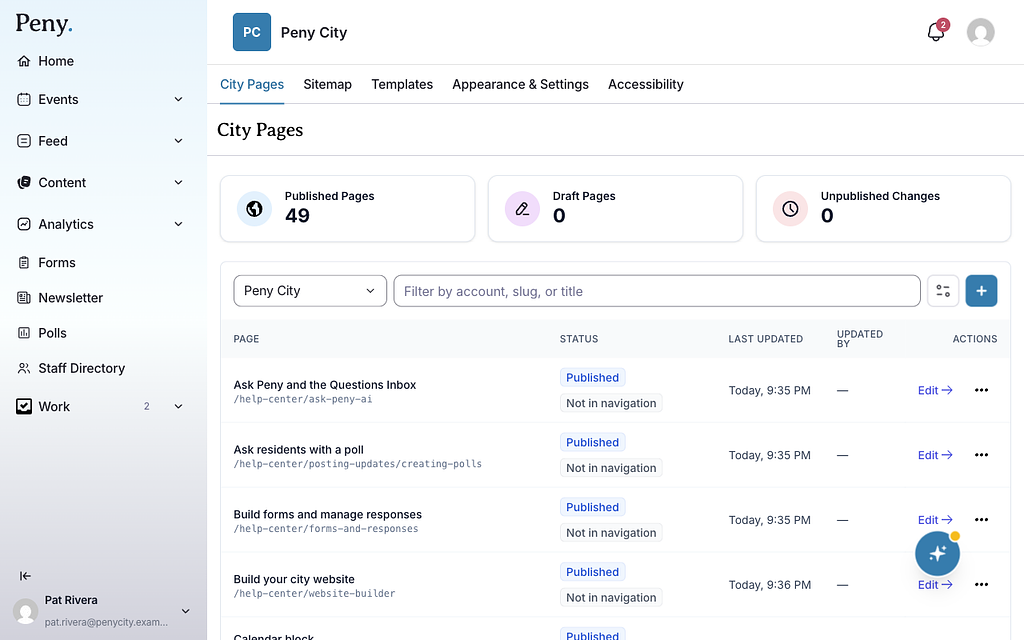
- Where to find it: in the left sidebar, open Content and click City Pages.
The website builder has five tabs across the top:
- City Pages — every page on your site and its status. Create, edit, unpublish and delete pages here.
- Sitemap — the menu at the top of your public site.
- Templates — page layouts you saved so you can reuse them.
- Appearance & Settings — your brand color, logo, footer and other site-wide settings.
- Accessibility — problems that residents using screen readers, keyboards or low-vision settings may run into on your published pages.
Website builder guides
Guides in this section
- Create a page — start a new page, add and arrange blocks, and set its name and address.
- Publish, review and restore pages — make your changes live, send them for review, undo changes and bring back an earlier version.
- Organize your site menu — add pages, groups and links to the menu at the top of your site, then publish it.
- Change your site's appearance — set your brand color, logo, social share image, footer and city tidbits.
- Reuse work with templates and saved blocks — save a page layout or a single block and use it again on other pages.
- Check pages for accessibility — find and fix problems while you edit, when you publish and after.
- Website builder blocks — what each of the 22 blocks does, with a guide for each one.
The builder at a glance
When you open a page, the builder fills the screen.
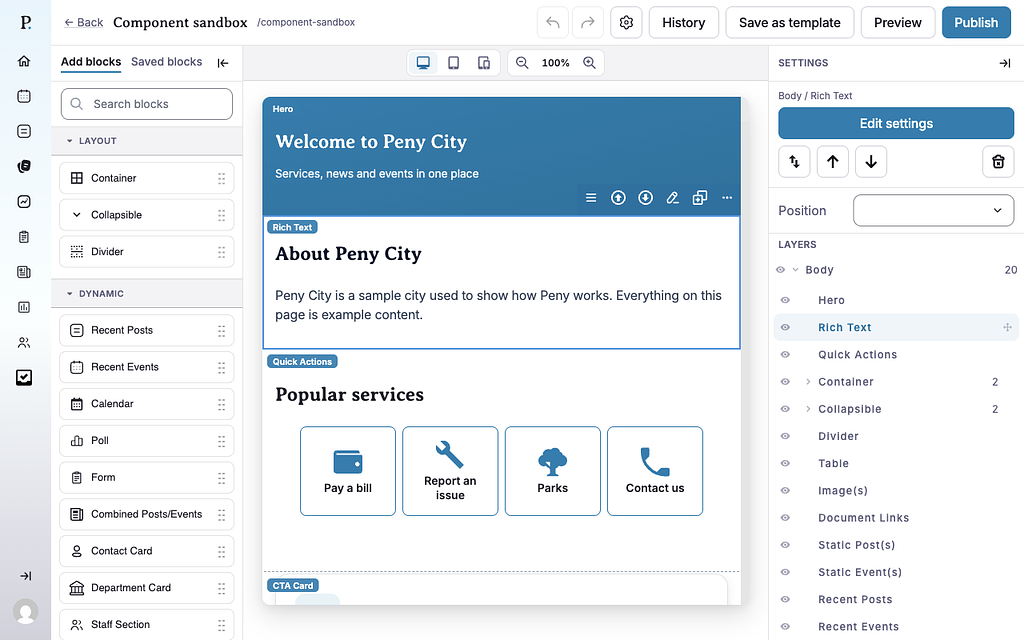
- Add blocks (left) — every block you can add, grouped as Layout, Content and Dynamic. The Saved blocks tab next to it holds blocks you saved to reuse.
- Canvas (middle) — your page as residents will see it. Use Desktop, Tablet and Mobile above it to check other screen sizes, and the zoom buttons to zoom in or out.
- Settings (right) — the options for the block you selected, and the Layers list of every block on the page.
- Toolbar (top) — Page settings (the gear), History, Save as template, Preview and Publish. Back returns you to the City Pages list.