
Publish, review and restore pages
Make your changes live, send them for review, undo mistakes and bring back an earlier version.
How drafts work
Everything you change in the builder saves as a draft. Residents keep seeing the last published version of the page until you publish.
Two badges at the top of the builder tell you where a page stands:
- Draft — the page has never been published, or it was unpublished. Residents can't open it.
- Unpublished changes — the page is live, but you have edits residents can't see yet.
Before you start
- City admins can publish pages.
- Publishing, unpublishing and deleting a live page need the Publish content permission. If you see "You are not authorized to perform this action.", ask a city admin to check your permissions. See Manage your team and permissions.
Publish a page
- Open the page in the builder. From the City Pages list, click Edit on its row.
- Click Preview to check the draft in a new tab. This step is optional.
- Click Publish.
Peny checks the page for accessibility problems first. If it finds none, the page publishes and the status reads Published ✓. A Draft page goes live for the first time.

If Peny finds problems, the Accessibility check window lists them as Must fix or Recommended:
- Click Go to block next to a problem, or Fix issues, to jump to the block and fix it. Then click Publish again.
- Click Publish anyway to publish without fixing. Peny keeps a record that you chose to publish anyway.
See Check pages for accessibility.
After a page's first publish, add it to the menu so residents can find it. See Organize your site menu.
Send a page for review
If your city reviews page changes before they go live, the builder shows Ready for review instead of Publish.
- Finish your edits in the builder.
- Click Ready for review.
The status reads Sent for review ✓. On the City Pages list the page shows Under review. In the builder the button now reads Waiting on review. The live page stays as it is until a reviewer approves the changes.
If you edit a page after it was approved, the approval no longer covers your changes. Send it for review again.
Don't see this? It may not be turned on for your city yet — email support@penyapp.com.
Undo and redo changes
Use the arrow buttons next to the gear in the toolbar:
- Undo last change — steps your draft back one saved change.
- Redo last change — puts back the change you just undid.
Your undo history is kept even if you reload the page. It starts over each time you publish.

Don't see this? It may not be turned on for your city yet — email support@penyapp.com.
Restore an earlier version
Every time you publish, Peny saves a version of the page.
- In the builder, click History.
- In Publish history, find the version you want. The newest is at the top, and Current marks what's live now.
- Click Preview to see that version in a new tab.
- Click Restore.
- Confirm.
Restoring publishes that version live right away. It also replaces your current draft.
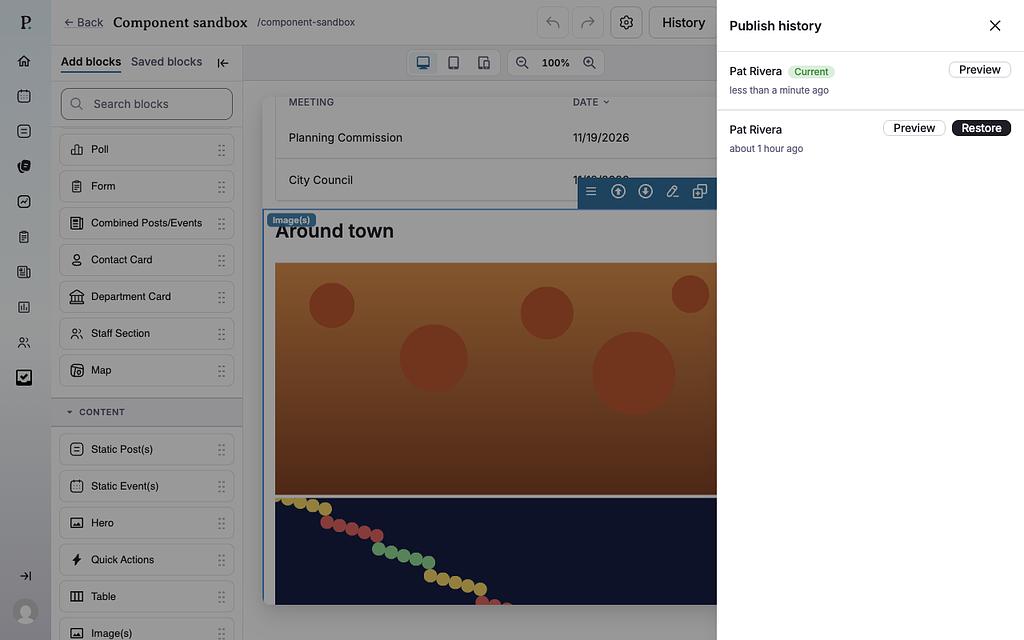
If your city reviews page changes, you can't restore a version straight to the site. Use Preview to copy what you need into your draft, then send it with Ready for review.
Unpublish a page
Unpublishing takes a page off your site but keeps its content and its spot in the menu.
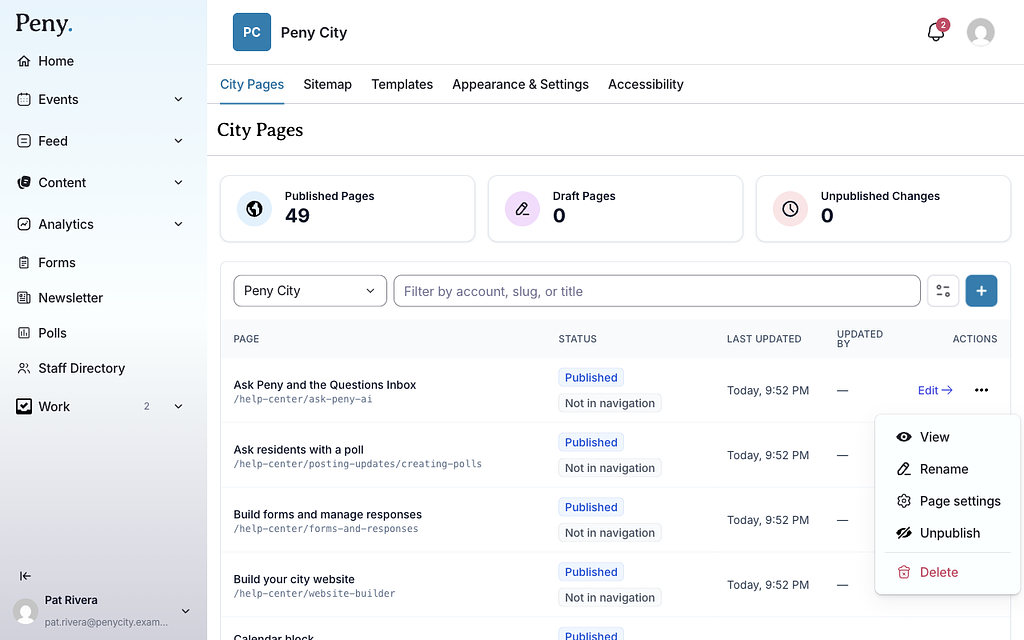
- In the City Pages list, click ⋯ (More actions) on the page's row.
- Click Unpublish.
- Confirm.
Residents can't open the page, even with a direct link, and it shows as Draft. If other pages link to it, the confirmation lists them. Those links lead to "page not found" until you publish the page again from the builder. The home page can't be unpublished.
Delete a page
- In the City Pages list, click ⋯ (More actions) on the page's row.
- Click Delete.
- Click Move to trash.
You can also click Delete page at the bottom of Page settings in the builder. The page comes off the site and out of the menu. Links from other pages show as unavailable until you restore it. The home page can't be deleted.
Restore or permanently delete a page
- In the City Pages list, click the filter button.
- Under Status, check Archived.
- Click Apply filters.
- Click ⋯ on the page's row.
- Click Restore, or Delete permanently.
A restored page comes back with its content. If it was published before, it's live again, but it isn't in the menu. Add it back from the Sitemap tab. If another page took its address in the meantime, rename that page first.
Delete permanently removes the page and its blocks. This can't be undone.
Page statuses on the City Pages list
- Published — live, with nothing waiting to publish.
- Draft — not live. It was never published, or it was unpublished.
- Unpublished changes — live, with edits waiting to publish.
- Under review — a reviewer has the changes.
- Archived — in the trash. Shown only when you filter by Archived.
Two more badges can appear next to the status:
- Not in navigation — the page is published but isn't in the menu.
- Needs attention — the page has accessibility problems. Click it to see them.
The cards at the top count your city's Published Pages, Draft Pages and pages with Unpublished Changes. Filters don't change these counts.
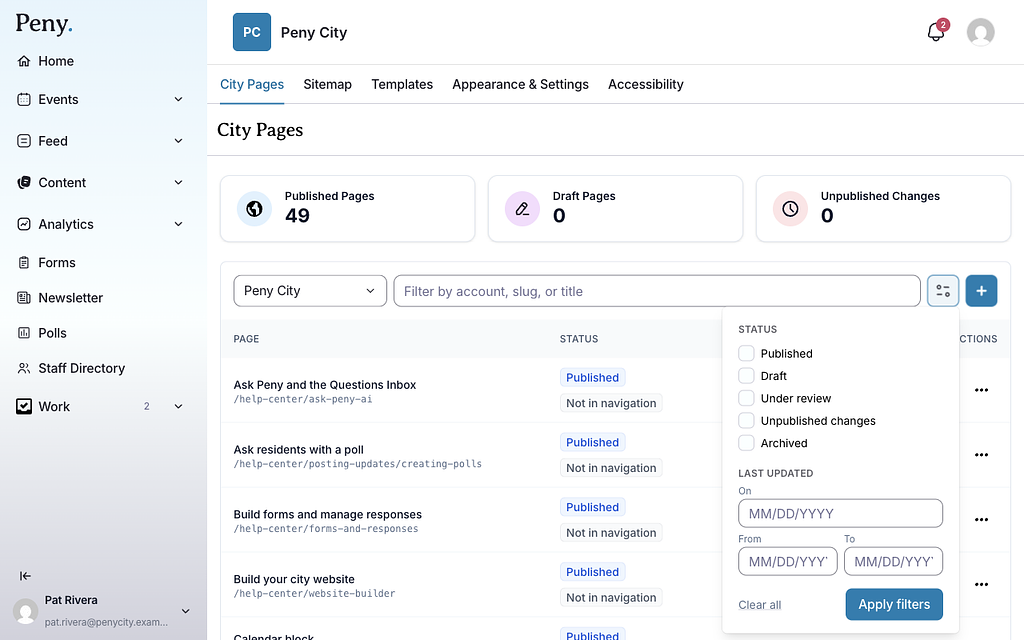
To narrow the list, click the filter button and choose Status, Last updated (On, or From and To) or Updated by, then click Apply filters. Clear all removes the filters. The search box filters by page title or address.