
Rich Text block
Write formatted text with headings, lists, links, images and links to your documents.
What it's for
Rich Text is the main block for writing on a page: paragraphs, headings, bulleted and numbered lists, links, quotes, tables and images. Peny's AI also reads published Rich Text, so clear, complete text helps it answer residents' questions.
Add it to a page
- Open the page in the builder.
- In Add blocks, under Content, drag Rich Text onto the page.
- With the block selected, click the pencil (Edit). You can also double-click the block, or click Edit settings in the Settings panel.
- Type your text in the editor that opens.
- Click Save.
Your text shows on the canvas right away. Like every change, it goes live when you publish the page.
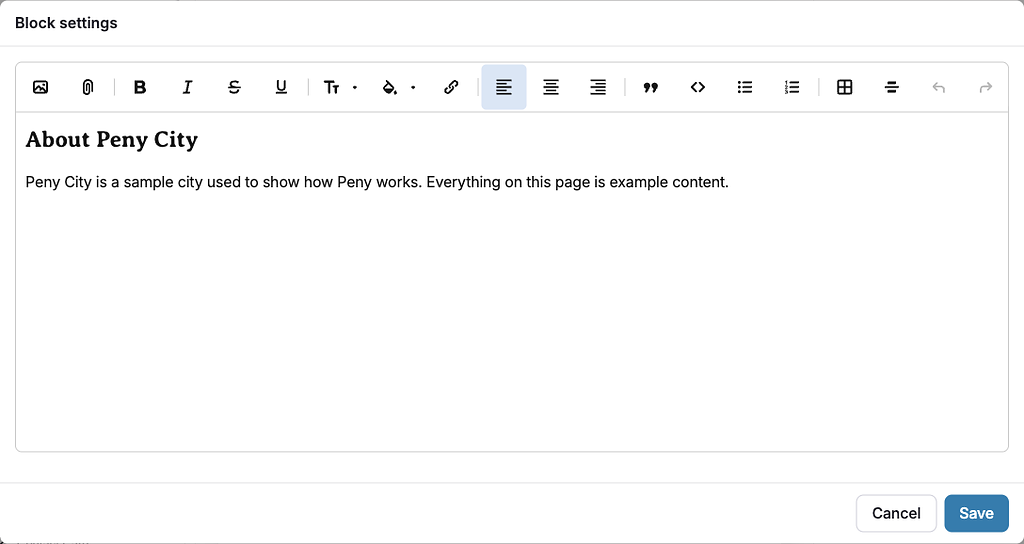
Format your text
The toolbar at the top of the editor has these tools. Hover over a button to see its name.
- Bold, Italic, Underline and Strikethrough.
- Text formatting — turn the selected line into Large Heading, Medium Heading or Small Heading, or back to Normal. Clear formatting removes styling.
- Color highlight — highlight text in a color. Remove all coloring takes it off.
- Link — select text, click Link (or press Ctrl+K, or ⌘K on a Mac), enter the full web address, then click Link. Unlink removes a link.
- Quote and Code blocks.
- Bullet list and Numbered list.
- Insert a table and Insert a divider.
- Align text left, Center text and Align text right — align the paragraph or heading your cursor is in.
- Undo and Redo.
Add an image
- Click where the image should go.
- Click the image button (Add images and video) in the toolbar.
- Choose the image file.
- Under the image, fill in Alt text to describe it for screen readers.
- Set the other options under the image if you need them.
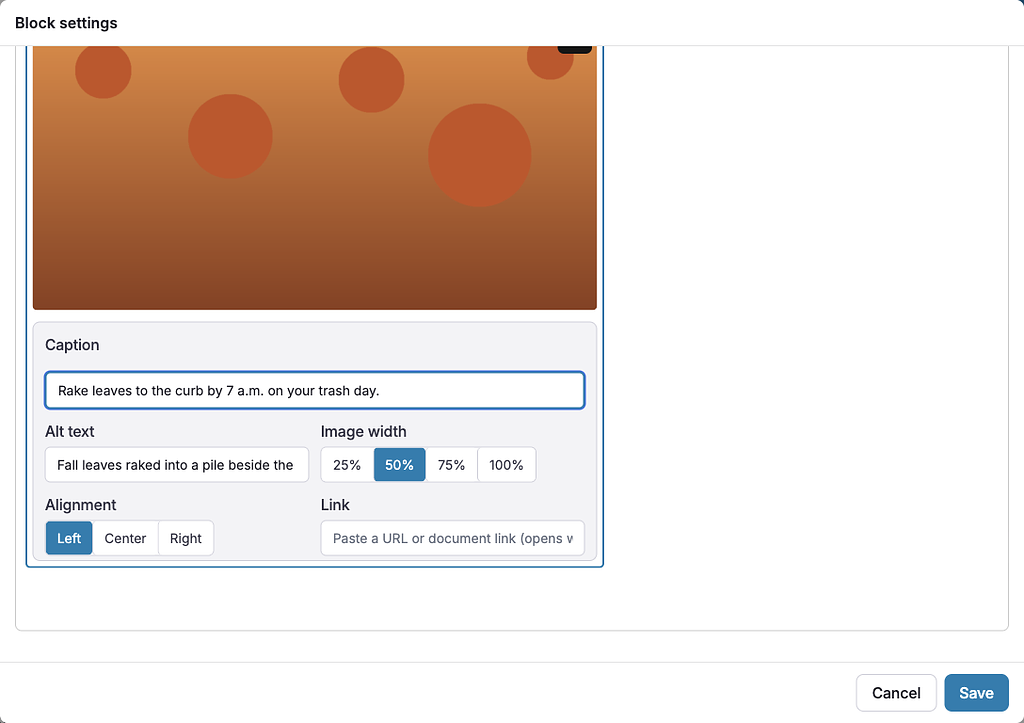
Each image has these options:
- Caption — text shown under the image on the page.
- Alt text — a description screen readers read aloud. It isn't shown on the page.
- Image width — 25%, 50%, 75% or 100% (the default).
- Alignment — Left (the default), Center or Right.
- Link — a web address or document link that opens when someone clicks the image.
Link to a document from your library
- In the editor, type @.
- Start typing the document's name.
- Pick the document from the list.
Peny inserts a link to that document. It opens in a preview on the page. To add documents to your library, see Manage documents and videos.
Here's Rich Text on a public page:
