
Department Card block
Give a department one card with everything residents need to reach it.
What it's for
A Department Card shows one department from your staff directory: its main contact, phone, email, location and hours, its divisions, and a team list residents can open. Use it at the top or side of a department's page.
Add it to a page
Who can do this: City admins, in the website builder.
You need the staff directory, with people in it. These blocks show what's in the directory, so update people there, not on the page.
Don't see this? It may not be turned on for your city yet — email support@penyapp.com.
- In the left sidebar, open Content › City Pages.
- Find the page and click Edit. The page opens in the builder.
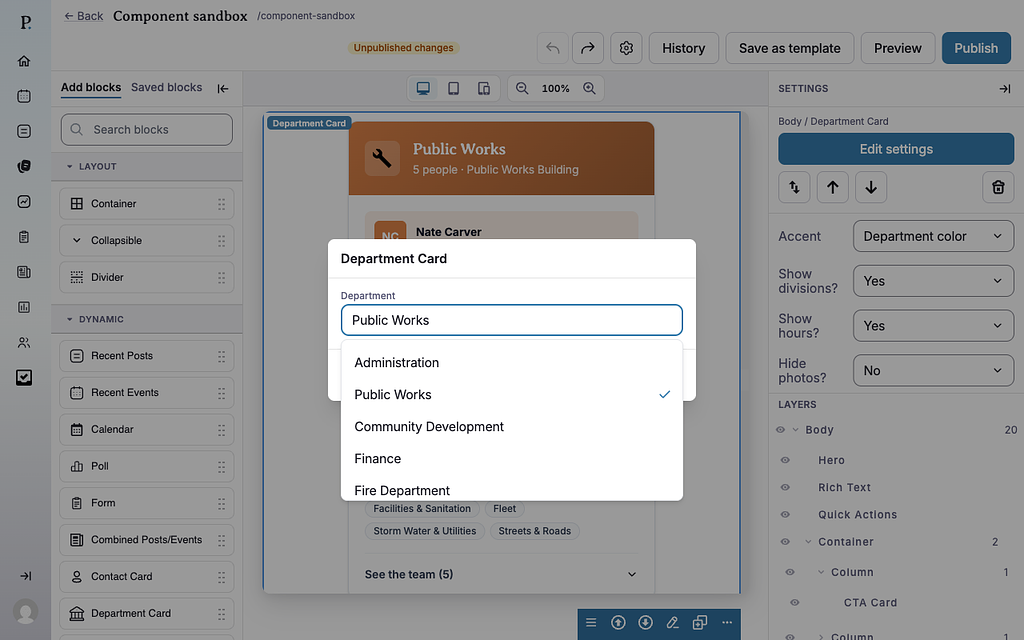
- In the Add blocks panel on the left, find Department Card under Dynamic. You can also type "Department Card" in Search blocks.
- Drag Department Card onto the page where you want it. Or select the block it should follow and click Department Card to add it right below — with nothing selected, it goes at the end of the page.
- The new block is selected and its settings appear in the Settings panel on the right.
- Click Edit settings in the Settings panel (or double-click the block).
- Under Department, click Choose a department… and pick the department.
- Click Save.
- Pick the card's options in the Settings panel.
- Your changes save as a draft as you go. Residents see them after you click Publish — or Ready for review, if your city reviews page changes.
Settings
In the side panel
- Accent — Department color (default) uses the color set for the department in the staff directory; City brand uses your city's brand color.
- Show divisions? — Yes (default) or No. Shows the department's divisions.
- Show hours? — Yes (default) or No.
- Hide photos? — No (default) or Yes. Hides staff photos on the card.
The Department Card has one layout.
In the Edit popup
- Department — The department to show.
What residents see
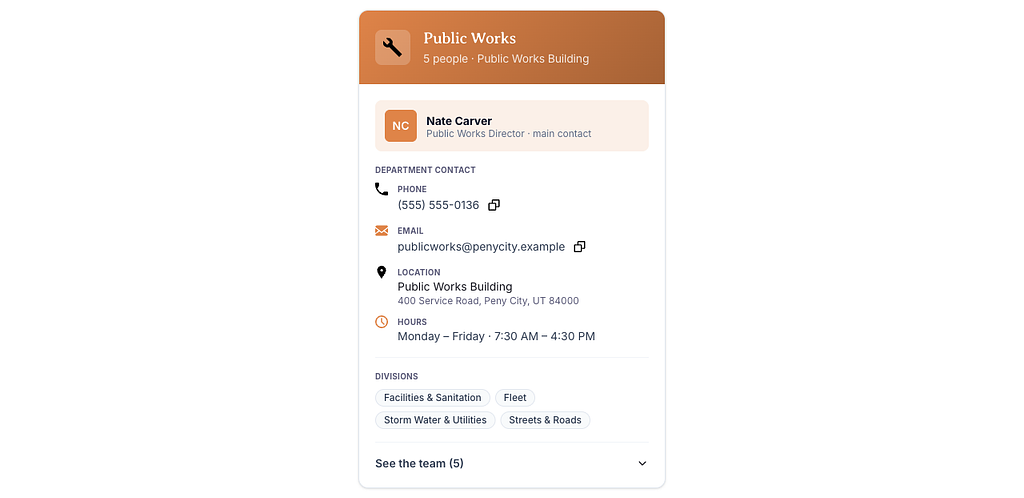
- A colored header with the department's name and how many people work there.
- The main contact set for the department in the directory, with their title.
- Department contact details: phone, email, location and hours, with buttons to copy the phone number and email address.
- Divisions, if the department has them and they're shown.
- See the team — residents click it to open the list of active staff, each with email and call buttons.
The card follows the directory: when staff change there, the card changes too. Until you pick a department, the block shows nothing on the page.
Tips
- Pair it with a Staff Section further down the page when residents need to see everyone's card.
- Set the department's main contact and hours in the staff directory — that's where this card reads them from.
- Check phones: click the Mobile preview button above the canvas.
Frequently asked questions