Connect Claude and other AI tools (Peny MCP)
Connect an AI assistant like Claude to Peny so it can look up your city's content and draft updates for you to review.
What the Peny connector does
The Peny connector (also called Peny MCP) lets an AI assistant such as Claude work with your city's Peny content on your behalf. You ask in plain language, and the assistant can search your posts, events, documents and pages, then draft new content for you to check.
The connector works for one city at a time and acts as you: anything it creates or changes is recorded under your name in the item's version history.
Before you start
- Only city staff can connect. Resident accounts can't use the connector.
- Peny turns the connector on for each city. If it doesn't connect, email support@penyapp.com and ask for it to be turned on for your city.
- You need an AI app that supports remote MCP servers with sign-in, such as Claude.ai, Claude Desktop or Claude Code.
- The server address is
https://peny.app/mcp. There's no API key to copy. You sign in with your normal Peny account instead.
Connect Claude.ai or Claude Desktop
- In Claude, open Settings.
- Go to Connectors.
- Click Add custom connector.
- Type Peny as the name.
- Enter
https://peny.app/mcpas the URL. - Add the connector, then click Connect.
- The Peny sign-in page opens in your browser. Sign in with your Peny staff account.
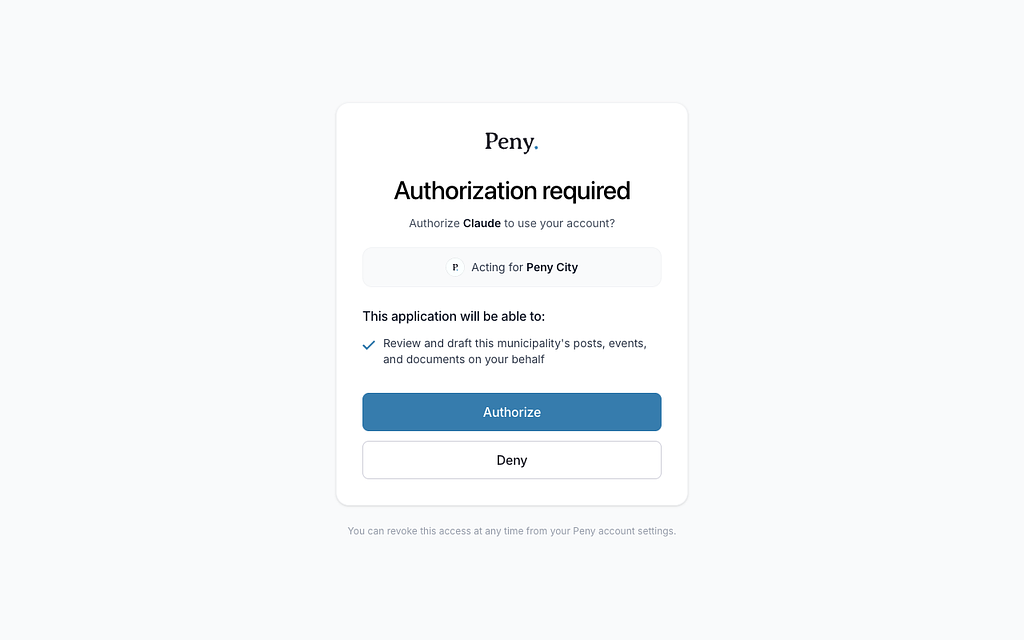
- On the consent screen, check the city name, then click Authorize.
You're returned to Claude, and Peny is ready to use in your chats. Your access refreshes automatically, so you don't need to sign in again each time.
Connect Claude Code
- In your terminal, run:
claude mcp add --transport http peny https://peny.app/mcp
- Start Claude Code and type
/mcp. - Choose peny and follow the prompt to sign in. Peny's sign-in page opens in your browser.
- Sign in with your Peny staff account.
- On the consent screen, click Authorize.
Connect another AI app
Other AI apps that support remote MCP servers with sign-in (OAuth) work the same way:
- In your AI app, add a new remote MCP server or connector. Check your app's own help for where this setting lives.
- Enter
https://peny.app/mcpas the server URL. - When the app asks you to sign in, sign in to Peny in the browser window that opens.
- Click Authorize on the consent screen.
Review the consent screen
Before any app can use your account, Peny shows a screen titled Authorization required. It tells you:
- Authorize app name to use your account? The name of the AI app asking for access.
- Acting for your city. The city this connection will work in. Make sure it's the right one.
- This application will be able to: "Review and draft this municipality's posts, events, and documents on your behalf."
Click Authorize to connect, or Deny to cancel. The screen also reminds you that you can revoke access at any time.
What you can ask it to do
What the assistant can do depends on your role in Peny.
| The assistant can | The assistant can't |
|---|---|
| Read and search your city's posts, events, documents, videos and forms | Send push notifications to residents |
| Create draft posts, events, polls and forms for you to review | Geo-target posts to zones |
| Publish posts and events quietly, when you ask it to | Create critical alerts |
| Upload documents (published right away unless you ask for a draft) | Create Topics |
| City admins only: build and publish website pages, edit the site menu and use page templates | Delete posts, events, forms or documents |
A few things to know:
- Publishing is quiet. Posts and events published through the connector go live on your site, but residents get no push notification and no geo-targeting is applied. For anything residents need to be alerted about, publish it in Peny instead.
- Drafts come first. The assistant creates drafts unless you clearly ask it to publish something specific.
- Your review process still applies. If your city requires approval before content is published, the same approvals apply to work done through the connector.
- Accessibility is checked before publishing. The assistant runs an accessibility check and tells you about problems to fix before it publishes.
- Form responses stay protected. Residents' form submissions are personal information. Staff can see response counts and dates, and only city admins can read a full response.
Example requests
Try asking things like:
- "Draft a post about leaf pickup from this memo."
- "Create a Parks page with a hero and a contact card for Public Works."
- "What events do we have scheduled next month?"
- "Find our latest water quality report and summarize it."
- "Turn last night's council meeting recording into a draft post for residents."
- "Draft a sign-up form for the summer swim program."
Always read a draft before you publish it. The assistant is told to use only facts it finds in your Peny content, but you're responsible for what goes out to residents.
Disconnect an app
You can remove an AI app's access at any time.
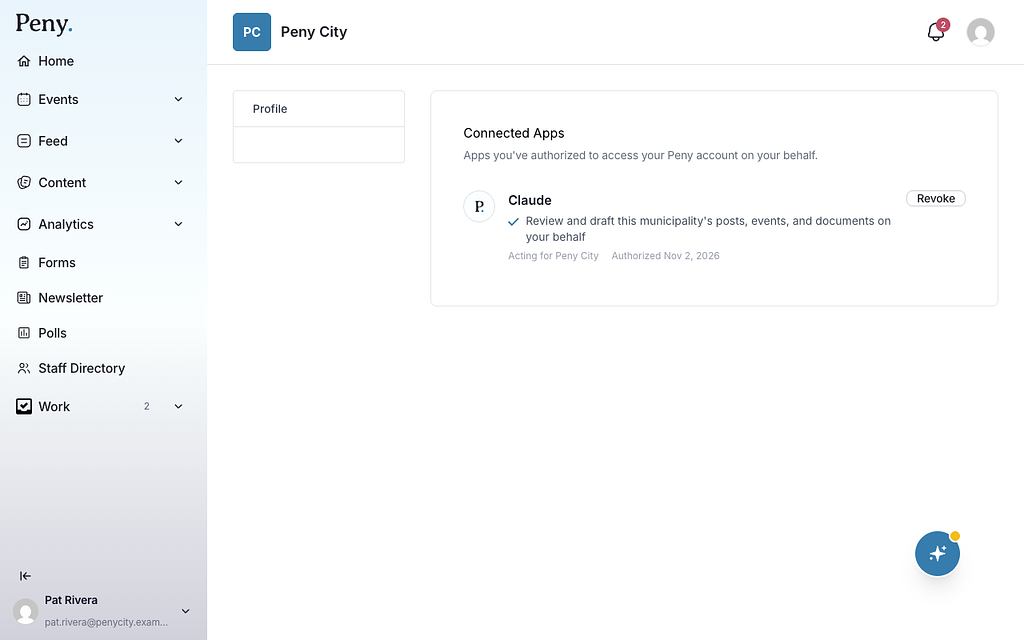
- Sign in to Peny and go to peny.app/connected_apps.
- The Connected Apps page lists the apps you've authorized to access your Peny account on your behalf. Each one shows the city it's Acting for and the date it was Authorized.
- Click Revoke next to the app.
- Confirm when Peny asks "Revoke app name's access? It will need to be re-authorized to connect again."
The app can no longer use your account. To use it again, connect it again from the start.