
Quick Actions block
Give residents one-click shortcuts to the things they do most.
What it's for
Quick Actions is a row of tiles, each with an icon and a short label, that link to common tasks: pay a bill, report an issue, find a park. It's made for the top of your home page, right under the Hero, but it works on any page. One block holds 1 to 8 actions.
Add it to a page
Who can do this: City admins, in the website builder.
- In the left sidebar, open Content › City Pages.
- Find the page and click Edit. The page opens in the builder.
- In the Add blocks panel on the left, find Quick Actions under Content. You can also type "Quick Actions" in Search blocks.
- Drag Quick Actions onto the page where you want it. Or select the block it should follow and click Quick Actions to add it right below — with nothing selected, it goes at the end of the page.
- The new block is selected and its settings appear in the Settings panel on the right.
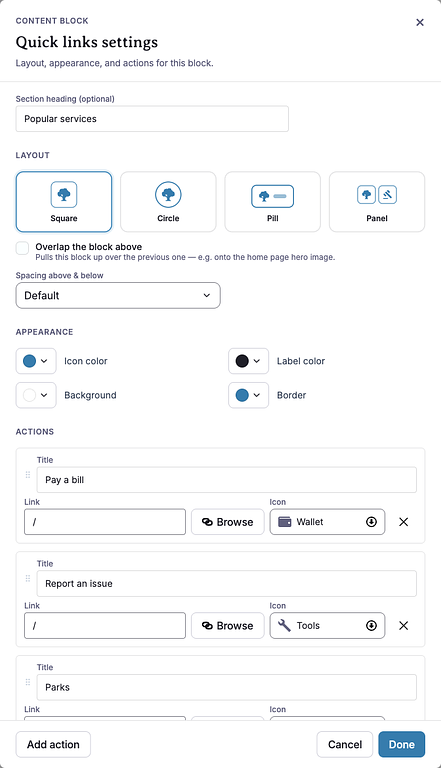
- The block starts with one action called "Action". Click Edit settings in the Settings panel (or double-click the block) to open Quick links settings.
- Under Actions, fill in the first action's Title, Link and Icon.
- Click Add action for each extra tile.
- Pick a Layout and colors (see Settings below).
- Click Done.
- Your changes save as a draft as you go. Residents see them after you click Publish — or Ready for review, if your city reviews page changes.
Settings
In the side panel
- Heading alignment — Left (default), Center or Right. Places the section heading, if you add one.
In the Edit popup (Quick links settings)
Section heading (optional) — A heading above the tiles, such as "Quick links". Leave it blank for no heading.
Layout — How the tiles look. Square is the default.
- Square — separate tiles with the icon and label.
- Circle — round icon buttons with the label underneath.
- Pill — rounded buttons with the icon and label side by side.
- Panel — tiles grouped inside one filled panel.
Overlap the block above — Pulls this block up over the block before it, for example onto the home page Hero photo. Off by default.
Spacing above & below — Default, Compact or None. With overlap on, only the space below the block changes.
Appearance — Each color opens a picker with preset colors, Custom color… and a default:
- Icon color — default: your city's brand color.
- Label color — default: dark text. With the Circle layout and Overlap the block above, the labels sit on the Hero photo, so the choices switch to light colors and the default becomes white.
- Background — fills the tiles (or the panel, in the Panel layout). Default: white. Choose None for no fill.
- Border — outlines the tiles. Default: your city's brand color. Choose None for no outline.
Actions — One row per tile:
- Title — the tile's label. Required: rows without a title are dropped when you save.
- Link — where the tile goes. Type a web address or a page path like "/pay", or click Browse to pick a document, topic, post, event or page in Peny. Picking one fills in an empty title for you.
- Icon — click Choose icon and pick one (or search with Search icons), or choose None. The icons are Announcement, Bell, Building, Business, Calendar, Clipboard, Document, Emergency, Feed, Gavel, Home, Info, Map, Park, Phone, Shield, Tag, Tools, Users and Wallet.
- Drag a row by its handle to change the order. Click the × to remove a row.
- Add action adds a row. After eight, you'll see "Maximum of 8 actions reached".
If the colors are hard to read
When you click Done, Peny checks that the labels and icons stand out from what's behind them. Labels need a contrast ratio of at least 4.5:1 and icons at least 3:1. If they don't, a "These colors may not be readable" panel opens with three choices:
- Use suggested colors — swaps in readable colors and saves.
- Back to editing — takes you back to the color pickers.
- Keep my colors — saves your colors anyway.
What residents see
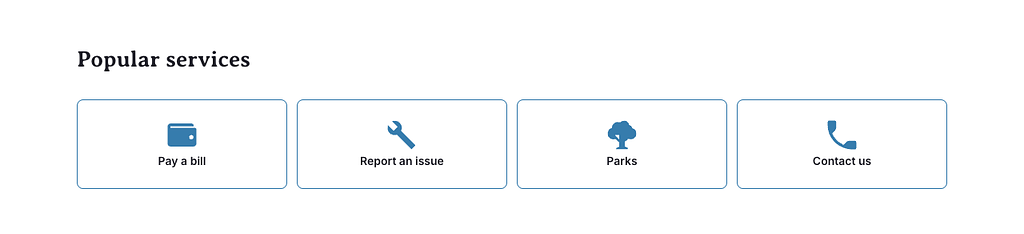
A row of tiles in the layout you picked. On a computer, up to eight tiles fit on one line. Each tile opens its link. A tile without a link shows as a plain tile that can't be clicked. On smaller screens the tiles rearrange to fit. In the Circle layout with Overlap the block above, the tiles stay in one row that residents swipe sideways, with arrow buttons when there are more than three.
Tips
- Keep titles short — two or three words, like "Pay a bill". The title is what screen readers announce, so make it say where the tile goes.
- Pick icons that match the task so residents can scan the row quickly.
- Home page layout: put Quick Actions right under a Home Page style Hero and turn on Overlap the block above.
- Start with the default colors. They follow your city's brand color, so the tiles match the rest of your site.
- Check phones: click the Mobile preview button above the canvas.
Example
This is a live Quick Actions block in the Square layout with the default colors. Its tiles link to other guides.