
Ask Peny and the Questions Inbox
Understand how Peny's AI answers residents, and close the gaps when it can't.
Try Ask Peny yourself
- Click the round sparkle button (Ask AI) in the bottom-right corner of the page.
- The Ask AI panel opens. Type your question and press Enter.
- Read the answer. Click any source chip to open the post, event, document or page it came from. Document sources open at the cited page.
- To start over, click New chat. To see earlier conversations, click the History tab.
You can also go to the full Ask AI page at your city's address followed by /ask-peny. Type a question and click Ask, or click one of the suggested questions under the box.
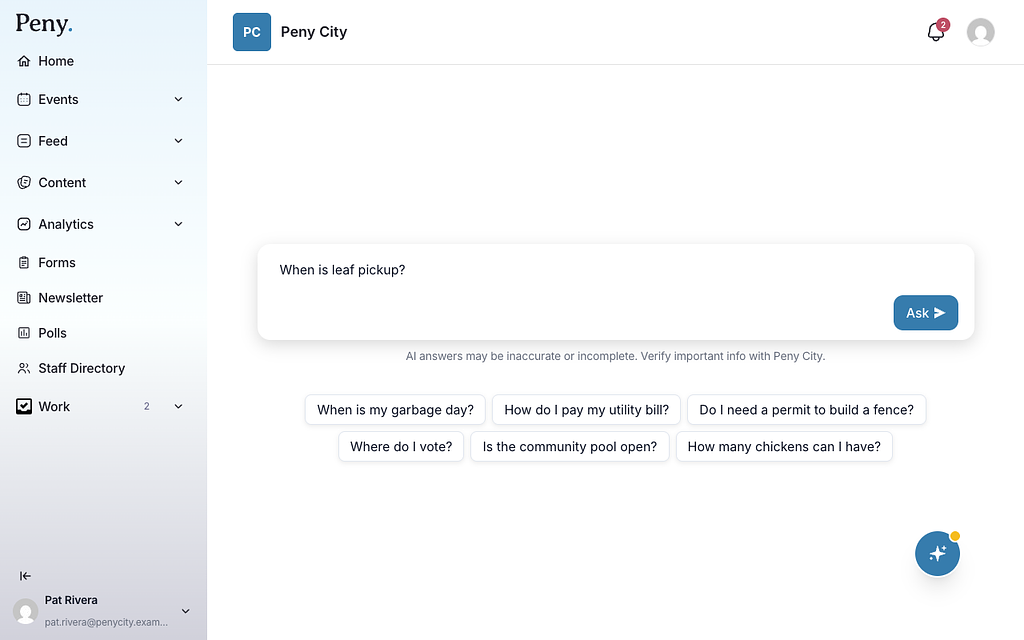
A few things residents see:
- The first time, a notice titled About this AI assistant explains how the assistant works. Residents click I Understand to continue.
- Under the box: "AI answers may be inaccurate or incomplete. Verify important info with" your city.
- If a question sounds like an emergency, the answer starts with "If this is an emergency, please call 911 immediately."
- Residents who've saved their address can get answers about their own address, such as their pickup day. Staff accounts don't get address-specific answers.
Change the suggested questions
The Popular Questions under your homepage's search bar are set in the homepage's Hero block, as Question 1 through Question 6. All six are required. See Hero block.
How questions reach the Questions Inbox
After an answer, Peny asks the resident: "Did this AI-generated response answer your question?"
- If they click No, Peny asks whether they'd like to share the conversation with the city so it can update its information.
- If Peny couldn't find an answer at all, it says the city doesn't have an answer for that and offers to share the conversation.
If the resident clicks Yes to share, the question goes to your Questions Inbox. Residents who aren't signed in can share too, and show as Guest. Questions that aren't about the city, and questions the resident chose not to share, don't go to the inbox.
Open the Questions Inbox
Who can do this: City admins and Super Admins.
- In the left sidebar, click Questions Inbox.
- If your city uses the Work section, click Work instead, then the Questions tab.
- Each question shows who asked it (or Guest), when, the question (Q:) and Peny's answer (A:). A dot marks questions you haven't opened yet.
- Use the search box or click Filters to narrow the list by Issue Type, Review Status or Category.
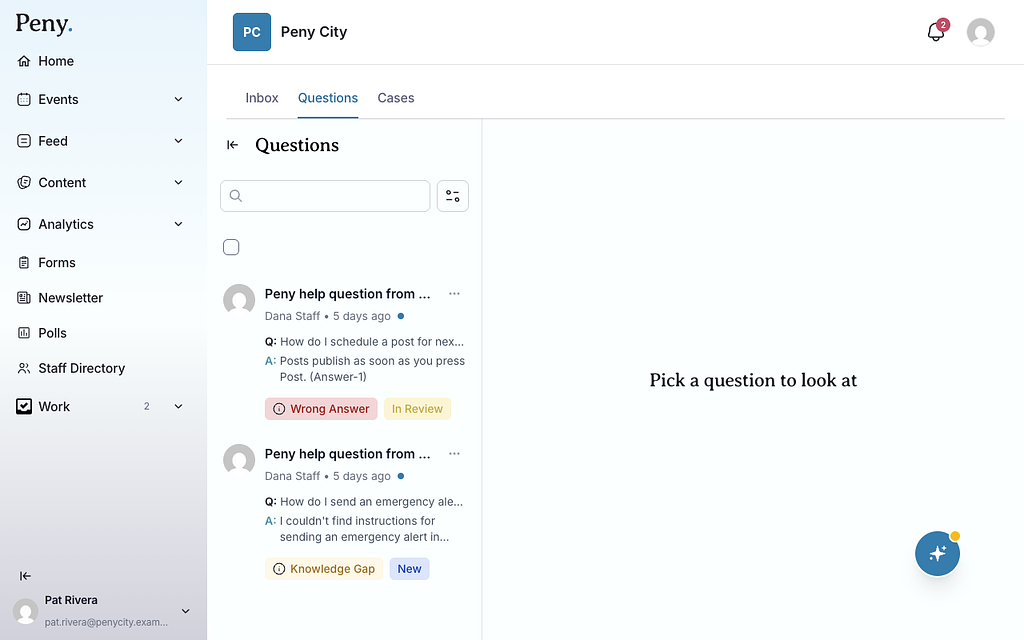
Statuses
- New: Nobody has opened it yet.
- In Review: A staff member has opened it. This happens automatically.
- Resolved: Someone has finished reviewing it. Resolved questions stay in the list. Filter by Review Status to hide them.
Review and resolve a question
- Click a question to open it. Click Show Conversation Context to see the whole conversation.
- Click the Toggle review panel button, next to the three dots at the top of the question, to open the Review panel.
- Choose an Issue Type:
- Knowledge Gap: The information isn't in your content yet.
- Wrong Answer: Peny gave incorrect information.
- Correct Answer: Peny's answer was accurate.
- Not City Related: The question was about something outside city services.
- Not Currently Supported: The request is something Peny can't do yet.
- Choose a Topic Category. If Peny's AI has suggested one, it shows above the box as AI assigned: followed by the topic. If no category fits, choose Other and type it in Other Category.
- Optional: assign it in Who has this, set an Answer promised by date, and add Notes for your team.
- Fix the gap, if there is one. Publish a post, update a website page, or upload a document that answers the question.
- Click Resolve.
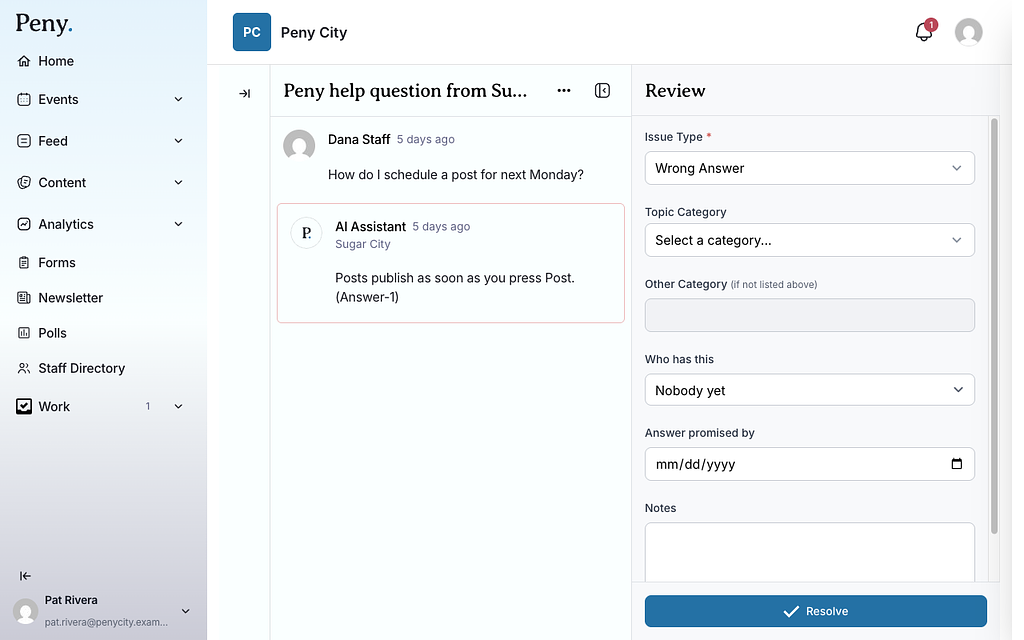
Your choices save automatically. Resolve stays greyed out until you choose an issue type. To reopen a resolved question, click Resolved and choose Change to In Review.
Resolving a question doesn't send a message to the resident. To make sure future residents get the answer, publish the missing information. Peny uses it once it's published.
Your choice of issue type also feeds the Knowledge health figures on the usage dashboard. For example, a question marked Correct Answer counts as answered.
Get notified about knowledge gaps
City admins and Super Admins get a Knowledge Review Needed push notification and email when a question is marked as a Knowledge Gap. The email has a Review Conversation button that opens the question. To turn these on or off, click your name at the bottom of the left sidebar, click Profile, and change the Push and Email switches under Knowledge Gaps.
Delete a question
Open the question's More options menu and click Delete, then confirm. To delete several, click Select All or tick the ones you want, then click Delete. This can't be undone.