
Divider block
Separate blocks on a page with a horizontal line.
What it's for
A Divider draws a horizontal line across the page. Use it to separate topics, for example between a list of services and contact information.
Add it to a page
- Open the page in the builder.
- In Add blocks, under Layout, drag Divider to the spot between the two blocks you want to separate.
- With the divider selected, choose its Style and Spacing in the Settings panel on the right.
The divider has no edit window. Every setting is in the Settings panel and applies right away.
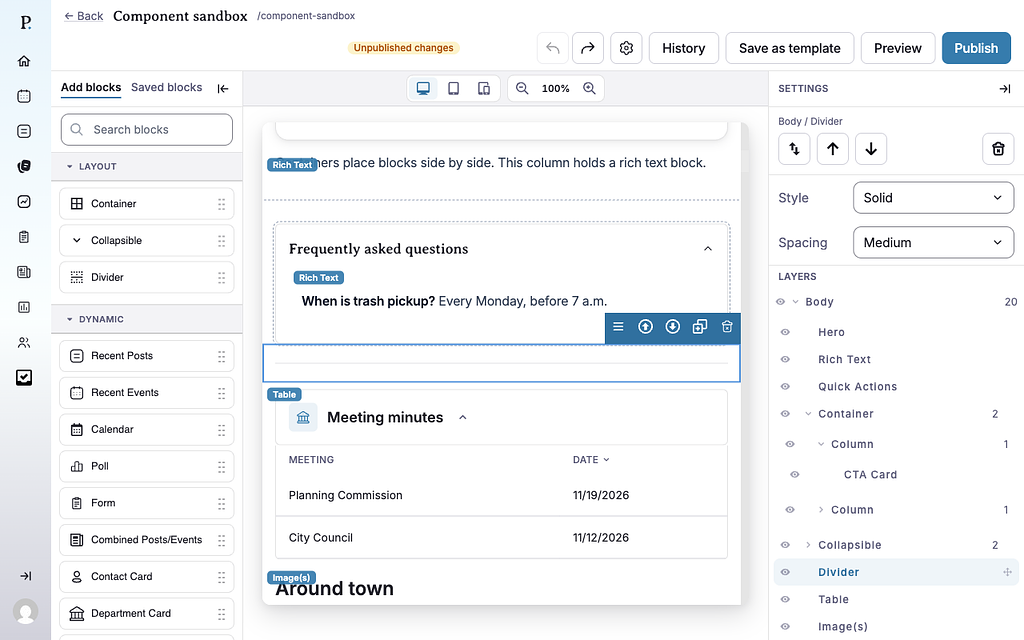
Settings
- Style — how the line looks. Solid (the default) is a thin line, Dashed is a thin dashed line, and Thick is a heavier, darker line.
- Spacing — how much space sits above and below the line. Small, Medium (the default) or Large.
Tips
- Use dividers sparingly. Headings in a Rich Text block often separate topics better, and screen reader users can jump between headings.
- Use Spacing for room, instead of empty text blocks.
- A divider lines up with the edges of tables and collapsibles. Inside a container column, it spans the column.
- You can also add a line inside a Rich Text block with the editor's Insert a divider button.
Example
These three dividers are live examples.
Style: Solid, Spacing: Medium