Responses are generated by AI, not written or approved by Peny City, USA, and may be wrong, incomplete, or outdated. Missing information does not mean you are safe. Contact Peny City, USA at 8014994393 before acting on any information provided here.
Do not use this AI assistant for emergencies or medical, legal, or safety advice. Call 911.
Your conversations with this AI assistant are private. No city can see your conversations unless you choose to share them. If you share a conversation, the city will be able to view the full conversation, including any personal information you include. Do not include sensitive personal information in conversations you plan to share.
You won't be able to start new AI conversations or continue existing ones, but you can still view previous AI interactions and browse content published by Peny City, USA. By using this site, you agree to our Terms of Use (opens in a new tab) and Privacy Policy (opens in a new tab).
Combined Posts/Events block
Show upcoming events and recent posts side by side in one card.
What it's for
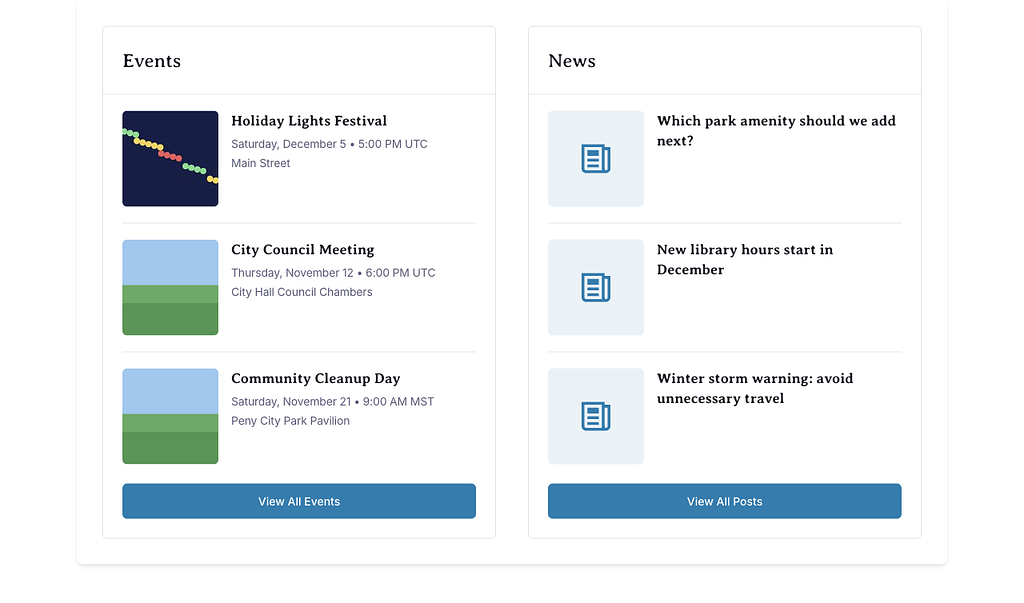
Combined Posts/Events puts two columns in one card: upcoming events on the left and recent posts on the right. Both update automatically. It's a good fit for the home page, under Quick Actions.
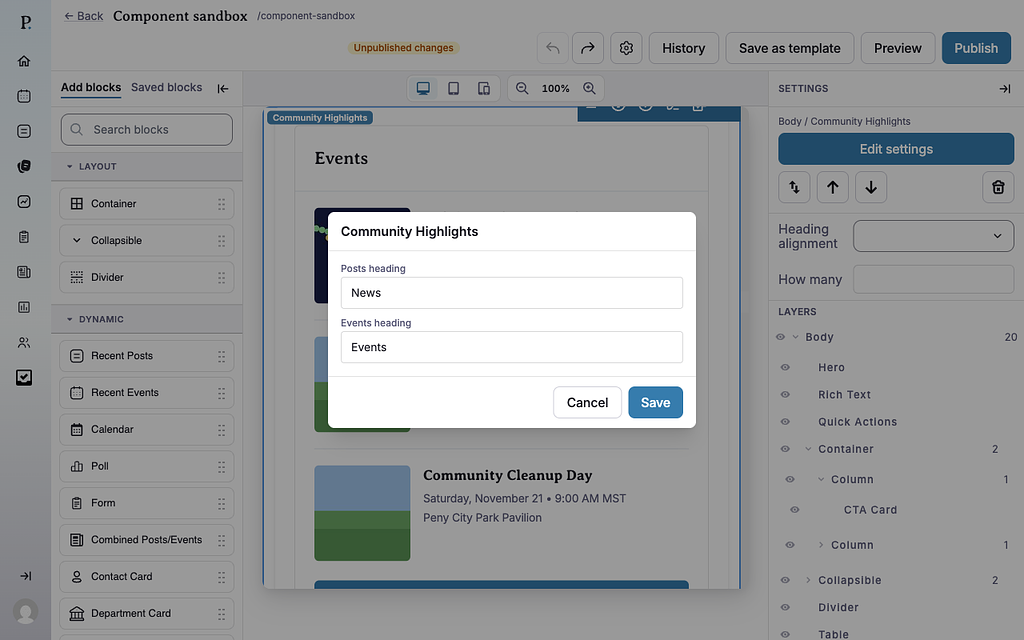
The block is called Combined Posts/Events in the Add blocks panel, but Community Highlights on the canvas and in the Layers list.
Add it to a page
Who can do this: City admins, in the website builder.
In the left sidebar, open Content › City Pages.
Find the page and click Edit. The page opens in the builder.
In the Add blocks panel on the left, find Combined Posts/Events under Dynamic. You can also type "Combined Posts/Events" in Search blocks.
Drag Combined Posts/Events onto the page where you want it. Or select the block it should follow and click Combined Posts/Events to add it right below — with nothing selected, it goes at the end of the page.
The new block is selected and its settings appear in the Settings panel on the right.
In the Settings panel, set How many cards to show in each column.
To change the column headings, click Edit settings in the Settings panel (or double-click the block), fill in the fields and click Save.
Your changes save as a draft as you go. Residents see them after you click Publish — or Ready for review, if your city reviews page changes.
Settings
In the side panel
Heading alignment — Left (default), Center or Right. Applies to both column headings.
How many — Cards in each column, from 1 to 6. Default: 3.
In the Edit popup
Posts heading — Heading over the posts column. Default: "Recent Posts". Up to 80 characters.
Events heading — Heading over the events column. Default: "Upcoming Events". Up to 80 characters.
What residents see
One card with two columns — events on the left, posts on the right. On phones the columns stack, events first.
Events column: upcoming published events, promoted events first, then the soonest. A View All Events link at the bottom. With no upcoming events it says "No upcoming events scheduled."
Posts column: published posts, a post pinned with Pin to Website Banner first, then the newest. A View All Posts link at the bottom. With no posts it says "No posts yet — check back soon."
Unlike Recent Posts and Recent Events, this block never disappears when a column is empty — it shows the message instead.
Tips
Keep How many at 3 or 4 so the two columns stay a similar height.
Need a topic filter? This block has none. Use Recent Posts and Recent Events side by side in a Container instead.
Check phones: click the Mobile preview button above the canvas.
Example
This is a live Combined Posts/Events block with How many set to 2 and the default headings. It shows this site's own events and posts.
I can't find "Community Highlights" in the Add blocks panel. In the panel it's called Combined Posts/Events. After you add it, it shows as Community Highlights.
Can I show only posts? Not with this block. Use Recent Posts instead.
I typed 0 or 10 in How many and it didn't save. Use a number from 1 to 6.