
Static Post(s) block
Feature the posts you choose, in the order you choose.
What it's for
Static Post(s) shows posts you pick by hand, in the order you pick them — the one announcement every visitor should read, or three posts that explain a project. Unlike Recent Posts, the list doesn't change when you publish something new.
Add it to a page
Who can do this: City admins, in the website builder.
- In the left sidebar, open Content › City Pages.
- Find the page and click Edit. The page opens in the builder.
- In the Add blocks panel on the left, find Static Post(s) under Content. You can also type "Static Post(s)" in Search blocks.
- Drag Static Post(s) onto the page where you want it. Or select the block it should follow and click Static Post(s) to add it right below — with nothing selected, it goes at the end of the page.
- The new block is selected and its settings appear in the Settings panel on the right.
- Click Edit settings in the Settings panel (or double-click the block). The block shows "Pick posts" until you do.
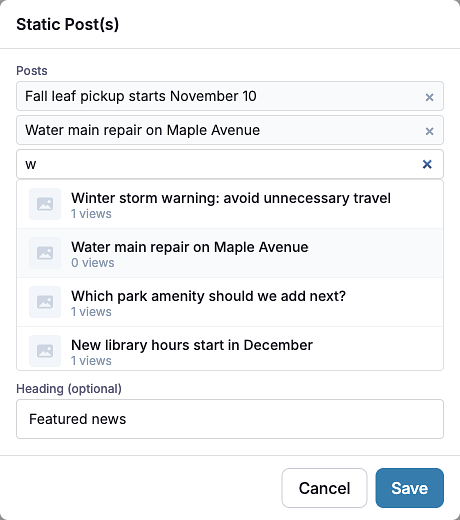
- Click in the Posts search box. Your most recent posts appear under Recent — or type to search.
- Click a post to add it. Add more posts the same way; they show in the order you add them.
- Optionally type a Heading (optional), then click Save.
- In the Settings panel, choose a Style: Card or Full post.
- Your changes save as a draft as you go. Residents see them after you click Publish — or Ready for review, if your city reviews page changes.
Settings
In the side panel
- Style — Card (default): compact cards. Full post: each post shown in full.
- “View more posts” link — No (default) or Yes. Only appears when Style is Full post. Adds a View more posts button under the posts.
- Heading alignment — Left (default), Center or Right.
In the Edit popup
- Posts — Search and pick posts. Only published posts are listed. Picked posts appear above the search box, in the order they'll show on the page; click the × next to one to remove it. To change the order, remove posts and add them again in the order you want. The block shows up to 20 posts.
- Heading (optional) — A heading above the posts, such as "Featured news".
What residents see
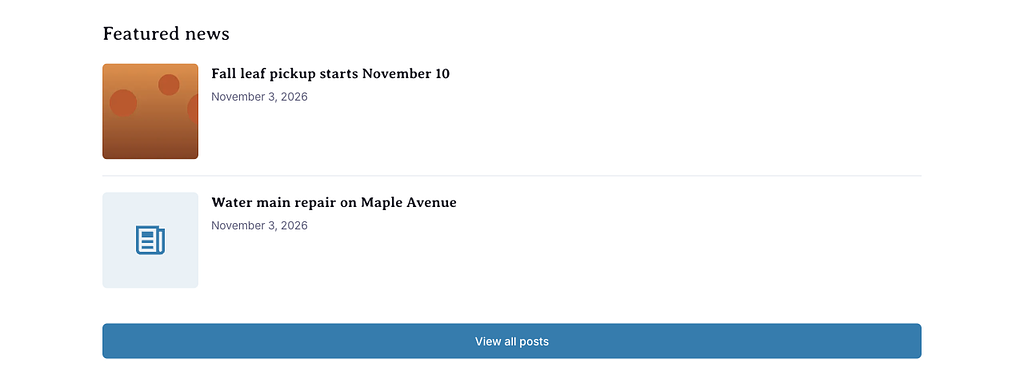
- Card style: each post as a card with its photo, title, date and the start of its text, plus a View all posts button that opens your city's feed. Clicking a title opens the full post.
- Full post style: each post shown whole — title, full text, photos, attachments and any poll — with an optional View more posts button.
If a picked post is later unpublished or deleted, it's skipped. If none of the picked posts can be shown, the block shows nothing.
Tips
- Use Card for a short list of highlights, and Full post for one announcement you want read in full.
- Want the newest posts automatically? Use the Recent Posts block instead — it updates itself.
- Give posts a good photo and title before you feature them; the card shows both.
- Check phones: click the Mobile preview button above the canvas.
Frequently asked questions